Users & Permissions
Path: /dashboard/users · Permission: Users module (Admin only)
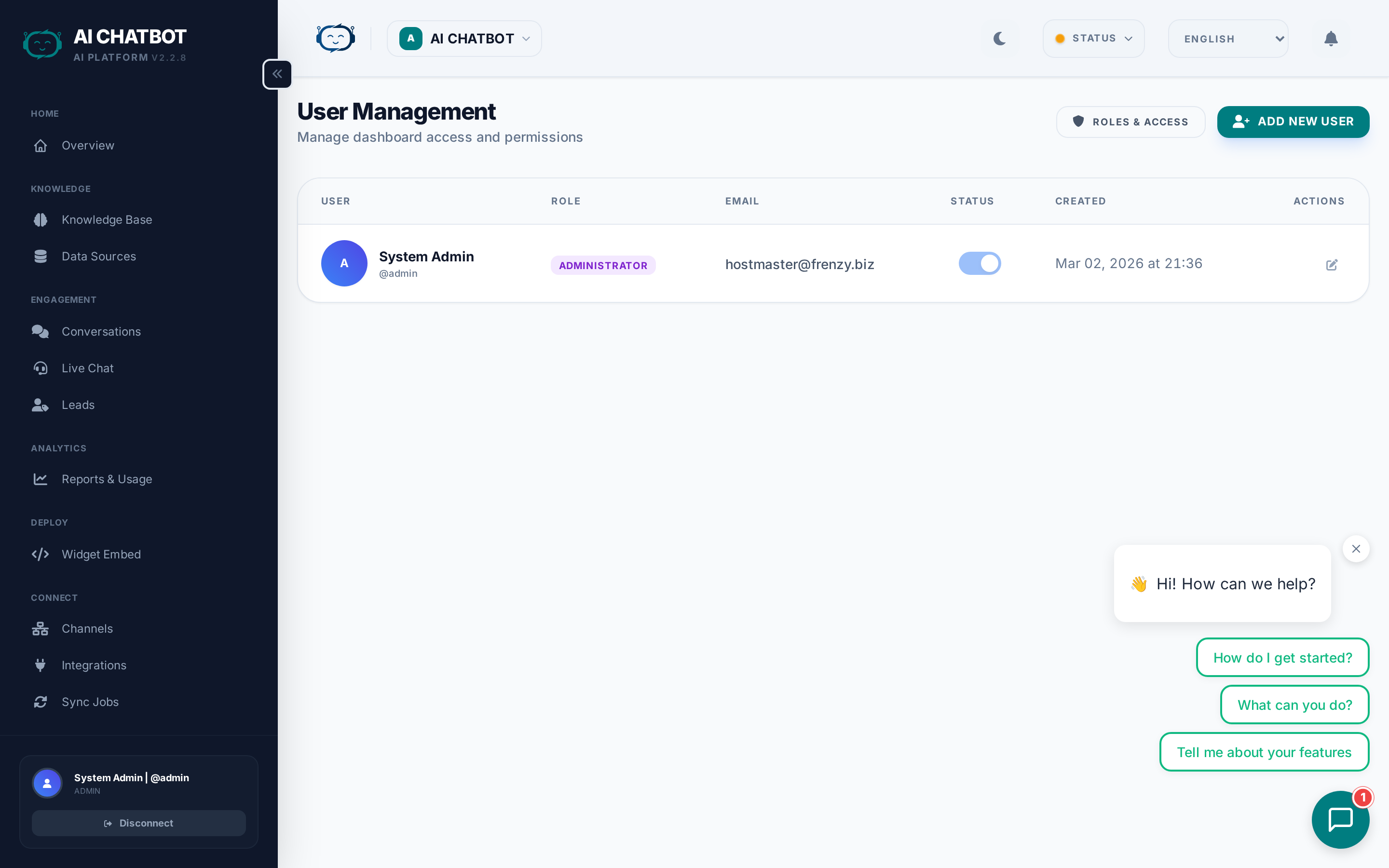
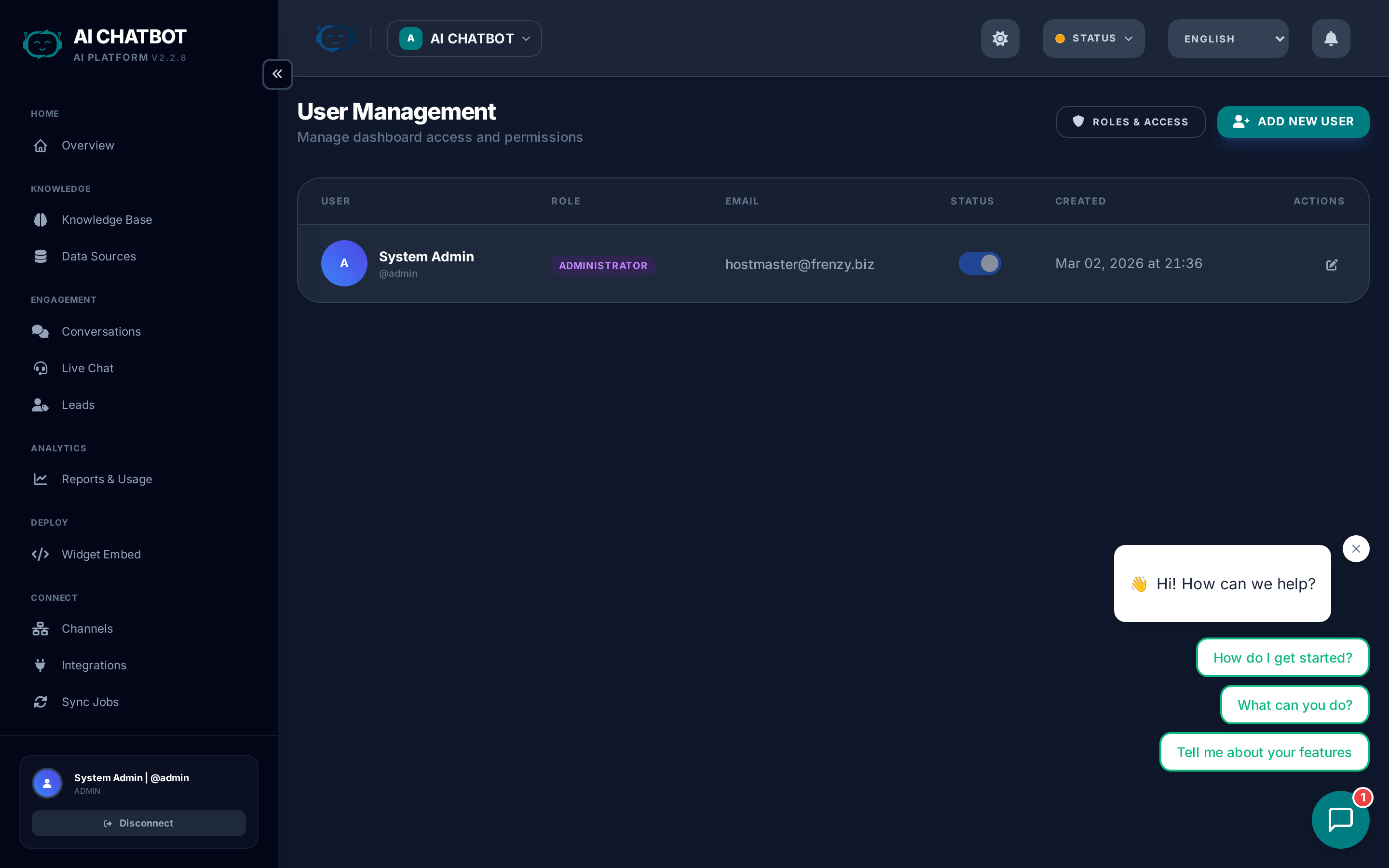
Manage who can access your FRENZY.BOT dashboard, what they can do, and which bots they can see. User management is restricted to Admin users only.
What this page answers
- Who has access to the system?
- What can each role do?
- How do I add or remove team members?
- How do I safely change a user's role?
Role types
FRENZY.BOT uses three built-in roles with increasing levels of access:
| Role | Access level | Best for |
|---|---|---|
| Admin | Full access to all modules, settings, users, and system logs | Business owners, system administrators |
| Manager | Operational access — everything except User Management and System Logs | Team leads, operations managers |
| Staff | Daily operational modules only — Knowledge Base, Conversations, Leads, Integrations, Channels, Sync Jobs | Support agents, content managers |
Each user has exactly one role. Roles determine which sidebar modules are visible and which API endpoints the user can access.
For granular per-module permission control, see Roles & Access (RBAC).
Managing users
Creating a user
- Go to Users in the sidebar.
- Click Add User.
- Enter username, email, and password.
- Select a role (Admin, Manager, or Staff).
- Save.
The new user can immediately log in with their credentials.
Editing a user
- Change role, email, or password from the user detail view.
- Role changes take effect on the user's next page load — the sidebar updates automatically.
Removing a user
- Select the user and click Delete.
- The user is removed immediately and can no longer log in.
- Historical data (activity logs, conversations attributed to the user) is preserved.
Bot membership
In a multi-bot setup, users are assigned to specific bots:
- Admins can access all bots regardless of membership.
- Managers and Staff only see bots they've been explicitly added to.
- Membership is managed in the Bot Management page.
Admin protection
The primary admin account has special protections:
- Cannot be deleted or deactivated.
- Username, email, and role are locked — only the password can be updated.
- This prevents accidental lockout of the system.
Security best practices
- Use strong passwords and rotate them quarterly.
- Remove access immediately when a team member leaves the organization.
- Limit Admin role to owners and system administrators only.
- Use Manager role for team leads who need operational access but shouldn't manage users or view system logs.
- Use Staff role for daily operators who handle knowledge base, conversations, and leads.
- Review user access regularly — at least monthly.
FAQ
Q: A user can't see a module in the sidebar.
- Their role doesn't include that module. Update the role's permissions in Roles & Access, or assign the user a higher-access role.
Q: Can I delete the primary admin?
- No. The primary admin is protected from deletion. This ensures you can always access the system.
Q: Can a user have multiple roles?
- No. Each user has exactly one role. Design your roles in Roles & Access to cover the access patterns you need.
Q: What happens to a deleted user's data?
- The user is removed from the system, but their activity logs and any conversations or leads they managed are preserved for audit purposes.