Modules & Add-ons
Path: /dashboard/modules · Permission: Modules module
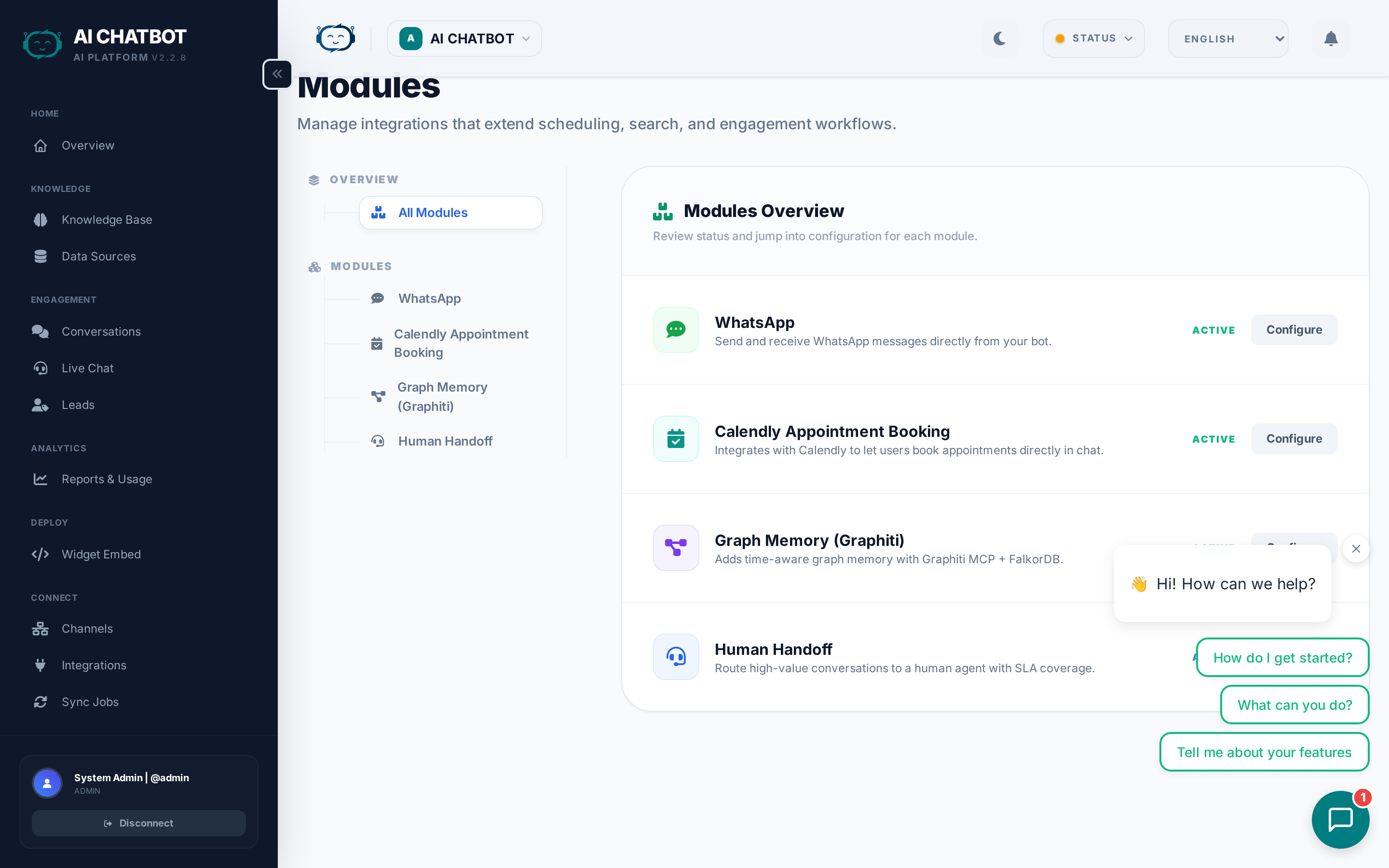
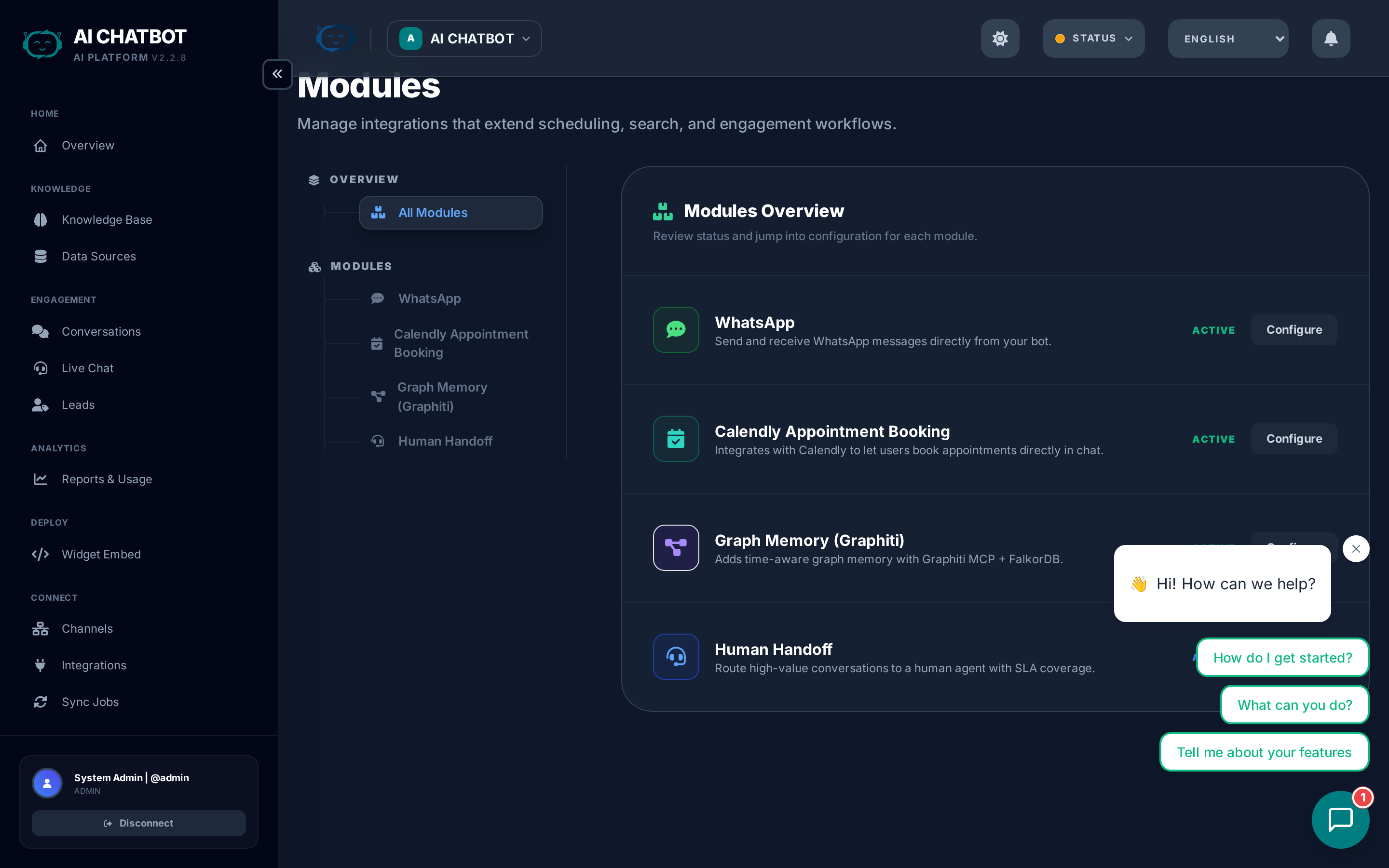
The Modules page is where you activate optional capabilities that extend your AI assistant's skills. Modules are "drop-in power-ups" — enable what you need, disable what you don't, without affecting the core system.
What this page answers
- What modules are available?
- How do I activate or deactivate a module?
- What does each module do and what's its business value?
- Which modules require external API keys?
How Modules are organized
The catalog groups together the built-in capabilities you can enable and configure from the dashboard.
Each module card shows:
- What it does — Feature description
- Business value — How it helps your business
- Status — Active, Inactive, or Coming Soon
- Configuration — Required fields (API keys, settings)
Available modules
Memory & Messaging
| Module | What it does | Requires |
|---|---|---|
| Long-Term Memory (Graphiti) | Cross-conversation knowledge graph. The bot remembers facts from previous conversations and builds a growing understanding of each user. | Graphiti MCP server |
| Sends and receives WhatsApp messages directly through your bot once the WAHA service is connected. | WAHA service + WhatsApp device connection |
Business value: Preserve continuity across conversations and open a high-value messaging channel directly inside frenzy.bot.
Scheduling & Support
| Module | What it does | Requires |
|---|---|---|
| Appointment Booking (Calendly) | In-chat scheduling. Users can book appointments directly in the widget via Calendly integration. | Calendly account |
| Human Handoff | Enables AI-to-human escalation. Users can request a live agent, and your team handles conversations in real-time from the dashboard. | No external key |
Business value: Convert conversations into meetings and make it easy for your team to step in when AI should escalate.
Notes
The current module list in the dashboard is intentionally focused. If a capability is not shown there, treat it as unavailable or inactive in the current release.
Messaging Channels
WhatsApp, Telegram, and other messaging platforms are now managed in the Channels page, not in Modules.
Data Source Connectors (Roadmap)
These modules are planned for upcoming releases:
| Module | Status | What it will do |
|---|---|---|
| Google Docs / Sheets | Planned | Index Google Docs and Sheets as knowledge base sources |
| Google Calendar | Planned | Let the bot check availability and book time slots |
| Notion | Planned | Import Notion pages and databases |
| Confluence | Planned | Import Atlassian Confluence pages |
| Airtable | Planned | Index Airtable bases as structured data |
How to activate a module
- Open Modules in the sidebar.
- Find the module card you want.
- Open the module and toggle it on if needed.
- Fill in any required configuration fields (API keys, account IDs, etc.).
- Click Save.
- Test the feature to confirm it's working.
Deactivating a module
Toggle the module off to disable it. Deactivating a module:
- Stops the feature from functioning.
- Preserves any configuration — you can re-enable later without re-entering settings.
- Does not delete historical data generated by the module.
FAQ
Q: A module shows "Coming Soon."
- It's on the roadmap but not yet available. Check the Roadmap for planned timelines.
Q: Will modules affect my billing?
- The built-in modules shown in the dashboard are included in frenzy.bot. Some integrations may still require your own third-party account or API credentials, such as Calendly or Graphiti infrastructure.
Q: Can I use a module on only one bot in a multi-bot setup?
- Module activation is currently server-level. All bots on the same server share access to enabled modules. Per-bot module scoping is on the roadmap.
Q: I activated a module but it's not working.
- Check that all required fields are filled in (API keys, account IDs). Verify the external service is accessible. Check Activity Logs for error messages.