Omnichannel Connectivity
Path: /dashboard/channels · Permission: Channels module
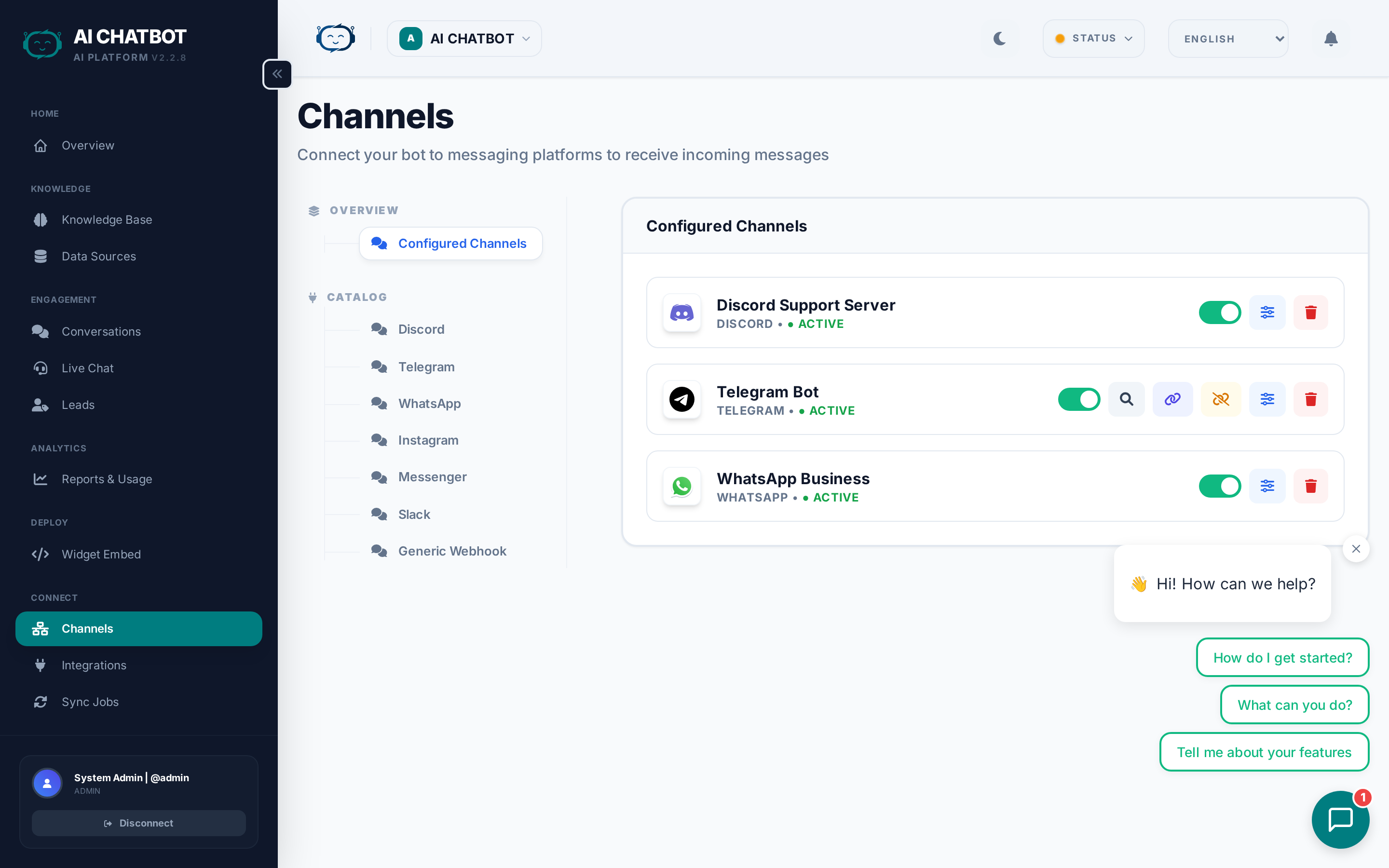
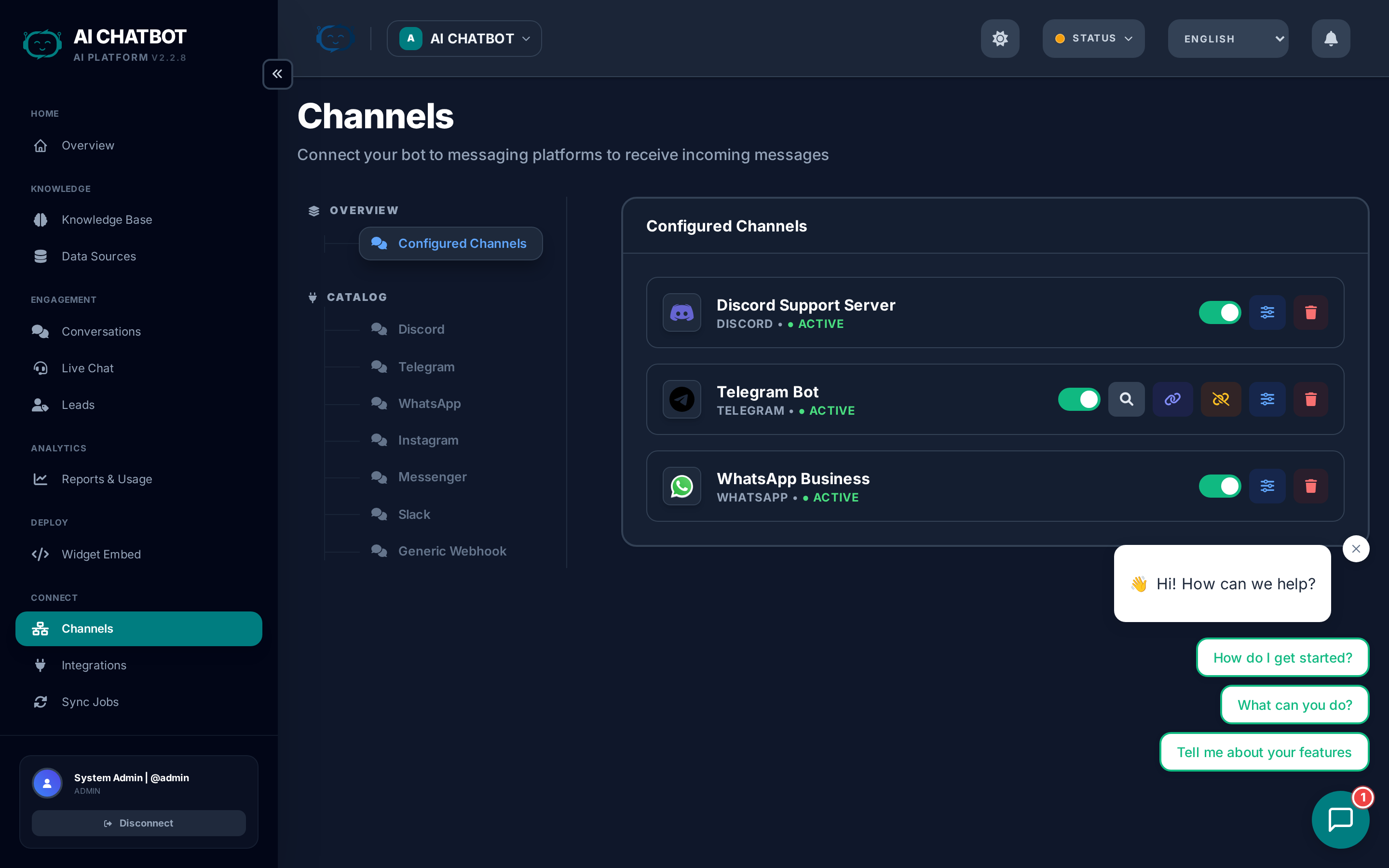
Channels let your bot respond wherever your users already are — website, messaging apps, and social platforms. Connect once, and conversations from every channel flow into the same dashboard for unified management.
What this page answers
- Which platforms are supported?
- How do I connect each channel?
- How do I customize the bot's reply style per channel?
- How do I enable or disable a channel safely?
Channel setup flow (all channels)
- Open Channels in the sidebar.
- In the Catalog section (left navigation), click the channel you want to connect (e.g., Telegram).
- Enter the required tokens / API keys.
- Click Test (if available) to verify the connection.
- Toggle Enable to start receiving messages.
Supported channels
Website Widget (Primary)
The chat widget is the fastest way to deploy your bot. It appears as a bubble on your website and opens into a full chat interface.
- Setup: Copy the embed script from Dashboard → Embed and paste it on your site.
- Features: Shadow DOM isolation, session persistence, lazy loading, suggested questions.
- Details: See Widget & Embed Code.
Enterprise WhatsApp automation powered by WAHA (WhatsApp HTTP API).
- Setup: One-click Docker installation + QR code pairing.
- Features: Automated responses, lead capture, human handoff, media support.
- Engine: NOWEB (lightweight — ~50MB RAM, 2-3 second startup).
- Details: See WhatsApp Setup for the full guide.
Pro Feature
WhatsApp requires the WhatsApp channel to be enabled. Contact your account manager or add via Channels.
Telegram
24/7 AI support inside Telegram conversations.
Setup:
- Go to Channels.
- Select Telegram from the Catalog.
- Create a bot via @BotFather on Telegram.
- Copy the bot token BotFather gives you.
- Paste the token in the dashboard.
- Toggle Enable.
Behavior: Handles Q&A, lead capture, and handoff requests. Supports text messages and basic formatting.
Discord
AI expert inside your Discord server — responds to mentions and direct messages.
Setup:
Connecting Discord requires creating an app and enabling specific privileged intents (like Message Content).
Please follow our Discord Channel Setup Guide to ensure your bot can read and reply to messages correctly.
Behavior: Replies to @mentions in channels and to direct messages. Supports threaded conversations.
Automated DM responses on Instagram.
Setup:
Due to Meta's strict platform requirements, connecting to Instagram requires configuring a custom Meta App in the Meta Developer Portal.
Please follow our comprehensive Meta (Instagram & Messenger) Setup Guide for step-by-step instructions.
Behavior: Responds to DMs with AI-generated answers. Captures leads from social conversations.
Facebook Messenger
Automated support in Messenger threads.
Setup:
Due to Meta's strict platform requirements, connecting to Messenger requires configuring a custom Meta App in the Meta Developer Portal.
Please follow our comprehensive Meta (Instagram & Messenger) Setup Guide for step-by-step instructions.
Behavior: Handles Q&A in Messenger threads with lead capture support.
Slack
AI assistant inside your Slack workspace.
Setup:
- Go to Channels.
- Select Slack from the Catalog.
- Create a Slack App in the Slack API portal.
- Configure the bot token and event subscriptions.
- Paste credentials in the dashboard.
- Toggle Enable.
Behavior: Responds to mentions and direct messages within Slack channels.
Generic Webhook
Connect any platform via a custom webhook endpoint.
Setup:
- Go to Channels.
- Select Generic Webhook from the Catalog.
- Configure your external platform to send messages to the provided webhook URL.
- Map incoming message format to FRENZY.BOT's expected schema.
Use case: Custom chat interfaces, internal tools, or platforms not natively supported.
Security tips
- Store all tokens in the dashboard only — never in code or config files.
- Regenerate tokens immediately if a credential is compromised.
- Use HTTPS webhook URLs — unencrypted endpoints are blocked.
- Review connected channels regularly and disable any that are no longer in use.
FAQ
Q: Messages aren't arriving from a channel.
- Verify the token is valid and hasn't expired.
- Check webhook registration (for Telegram, Discord, etc.).
- Ensure the channel is toggled Enabled in the dashboard.
- Review server logs for connection errors.
Q: Can I disable a channel without losing data?
- Yes. Disabling a channel only stops new messages. All historical conversations, leads, and analytics from that channel are preserved.
Q: Do all channels share the same knowledge base?
- Yes. All channels for the same bot use the same knowledge base, settings, and AI model. Only the reply style can differ per channel.
Q: Can I connect the same channel type twice (e.g., two WhatsApp numbers)?
- Not in the current version. Each channel type supports one connection per bot. For multiple numbers, create separate bots in a multi-bot setup.