Skip to content

Business Integrations

Path: /dashboard/integrations · Permission: Integrations module

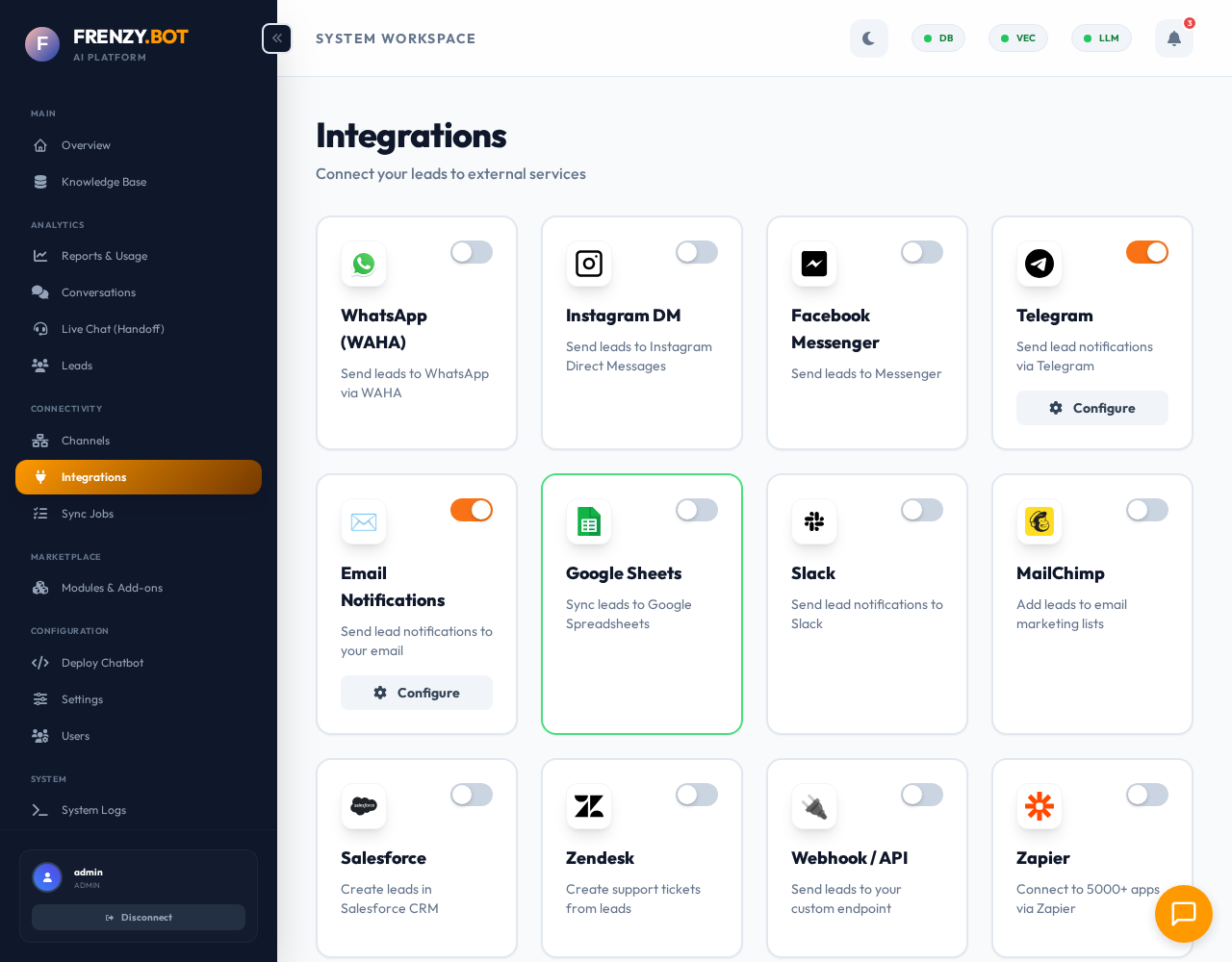
Integrations Integrations

Integrations automatically send leads, alerts, and conversation data to the tools your team already uses — so no one has to copy/paste data from the dashboard.


What this page answers

  • How do I push leads into my CRM?
  • How do I get instant alerts when a lead arrives?
  • How do I test integration settings before going live?
  • What data is sent with each lead?

Setup workflow (all integrations)

The process is the same for every integration type:

  1. Open Integrations in the sidebar.
  2. Browse the Catalog (left navigation) to find the service you want to connect.
  3. Click the integration to open its configuration panel.
  4. Toggle Active to reveal configuration fields.
  5. Fill in credentials — API key, webhook URL, SMTP details, etc.
  6. Test connection — Verify the integration works before going live.
  7. Save to enable live delivery of leads.

Always test first

Every integration has a Test Connection button. Use it before enabling live delivery to catch credential or network issues early.


Supported integrations

Email (SMTP)

Send detailed lead notifications to your team's inbox.

Setup:

  1. Go to Integrations.
  2. Select Email from the Catalog.
  3. Enter your SMTP server, port, username, and password.
  4. Add one or more recipient email addresses.
  5. Optionally include the AI-generated conversation summary.
  6. Click Test Connection to verify.
  7. Toggle Active.

Tips:

  • Use an app password if you're using Gmail or another provider with 2FA.
  • SendGrid, Mailgun, and Amazon SES all work as SMTP providers.
  • Multiple recipients are supported — add your sales team and support team.

Webhook

Send raw JSON payloads to any HTTP endpoint — your own API, CRM, or automation tool.

Setup:

  1. Go to Integrations.
  2. Select Webhook from the Catalog.
  3. Enter the endpoint URL (must be HTTPS).
  4. Select HTTP method (POST recommended).
  5. Optionally add an authorization token or custom headers.
  6. Click Test Connection.
  7. Toggle Active.

Payload includes: Lead name, email, phone, company, source channel, conversation summary, timestamp, and any custom fields.

Use cases:

  • Push leads to Salesforce, HubSpot, or Pipedrive via their API.
  • Trigger Zapier / Make.com / n8n workflows.
  • Send data to your own internal tools.

MailChimp

Automatically add captured leads to your MailChimp email marketing audience.

Setup:

  1. Go to Integrations.
  2. Select MailChimp from the Catalog.
  3. Enter your MailChimp API key.
  4. Enter your Audience (List) ID.
  5. Click Test Connection.
  6. Toggle Active.

Tips:

  • Find your API key in MailChimp → Account → Extras → API Keys.
  • Find your Audience ID in MailChimp → Audience → Settings → Audience name and defaults.
  • New leads are added as subscribers automatically.

Zapier & Make.com

Connect your bot to over 5,000 different business tools using Zapier or Make.com workflows.

Setup:

These platforms require you to set up a "Catch Hook" trigger that receives lead data from FRENZY.BOT.

Please follow our Zapier and Make.com Setup Guide for step-by-step instructions and data payload schemas.


What data is sent

Each integration receives the following lead data:

Field Description
Name Contact's full name
Email Email address
Phone Phone number (if collected)
Company Company name (if collected)
Source Channel that captured the lead (Widget, WhatsApp, etc.)
Conversation summary AI-generated recap of the chat
Timestamp When the lead was captured
Custom fields Any additional fields configured in the lead form

Security best practices

  • Store credentials in the dashboard only — never hardcode API keys in config files.
  • Use HTTPS for all webhook endpoints — unencrypted HTTP is rejected.
  • Rotate credentials every 90 days for compliance.
  • Test after credential rotation to confirm the integration still works.

FAQ

Q: The test passes but live leads don't arrive.

  • Confirm the integration is toggled Active (not just configured). Also verify the lead form is enabled in Settings → Lead Form — if users can't submit the form, no leads are generated.

Q: Webhooks fail with 403.

  • Your endpoint is blocking the request. Add the server's IP address to your endpoint's allowlist, or configure a shared secret / auth token.

Q: Can I send only qualified leads?

  • Currently, all captured leads are sent to enabled integrations. Use lead status filters in your CRM or webhook endpoint to route by status.

Q: Can I use multiple integrations at the same time?

  • Yes. Enable as many integrations as you need. Each new lead is sent to all active integrations simultaneously.

Q: Integration logs show errors — where do I check?

  • Go to Activity Logs and filter by the Integrations module to see detailed error messages and timestamps.