Sync Jobs & Data Status
Path: /dashboard/jobs · Permission: Sync Jobs module
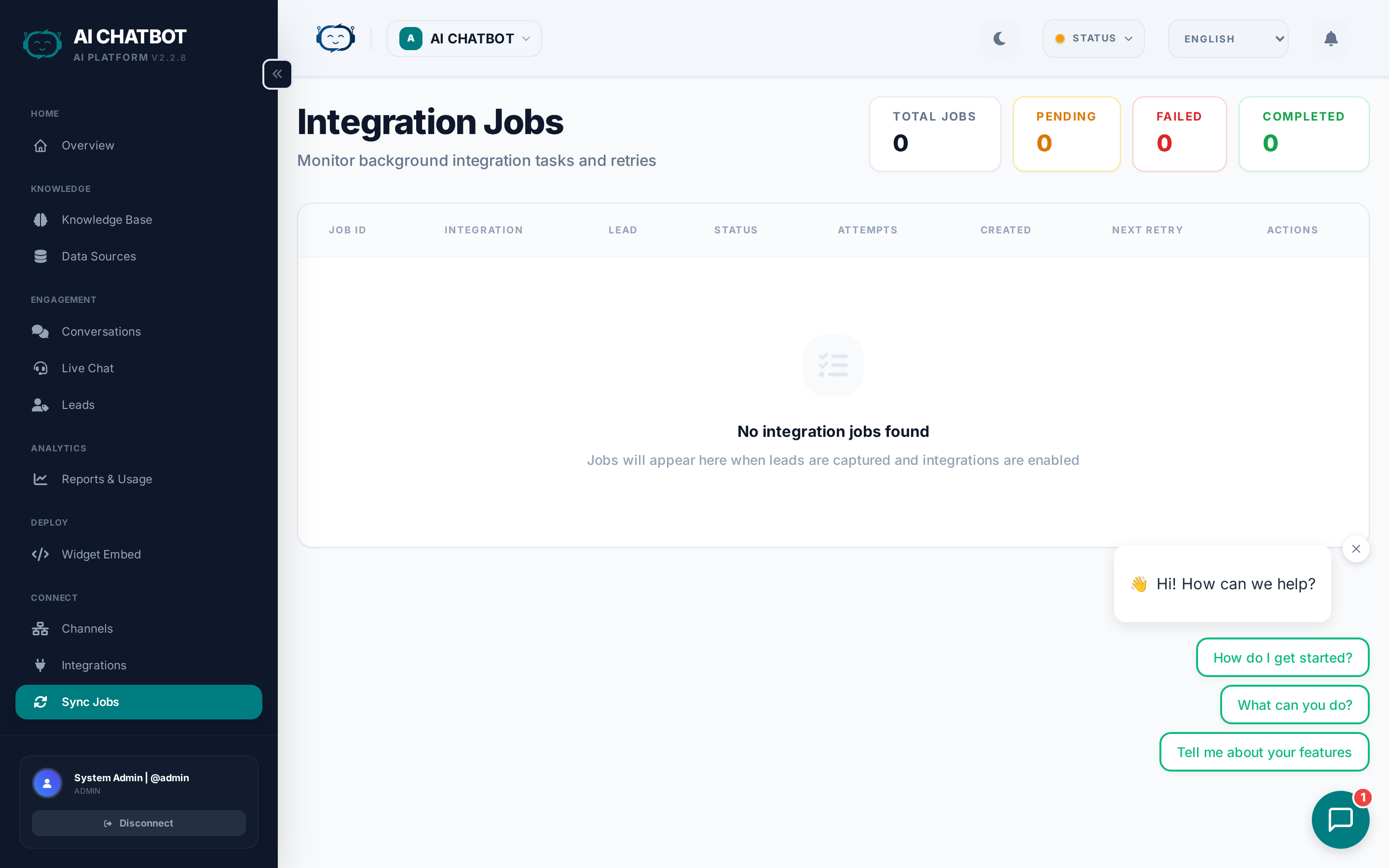

Sync Jobs track every background task that updates your knowledge base — file uploads, URL crawls, and FAQ indexing. Use this page to monitor progress, identify failures, and retry problematic jobs.
How sync jobs are created
You never need to create sync jobs manually. They are generated automatically whenever you:
- Upload a file in Knowledge Base → Files
- Add a URL in Knowledge Base → URLs
- Add or update an FAQ in Knowledge Base → FAQs
- Click Refresh Knowledge Base to trigger a full re-index
- Re-crawl a URL to update content from a website that has changed
Each action creates one or more jobs that appear on this page immediately.
Job list columns
| Column | What it shows |
|---|---|
| Type | The kind of job — file upload, URL crawl, FAQ sync, or full re-index |
| Source | The file name or URL being processed — click to see the full path |
| Status | Current state: Pending, Processing, Completed, or Error (color-coded) |
| Duration | How long the job took from start to finish |
| Created | When the job was first queued |
| Updated | Last time the status changed |
Job statuses explained
| Status | Color | What it means | What to do |
|---|---|---|---|
| Pending | Gray | In queue, waiting for a worker to pick it up | Nothing — it will start automatically |
| Processing | Blue/Amber | Actively extracting text, chunking content, and creating vector embeddings | Wait — progress is happening |
| Completed | Green | Content is fully indexed and searchable by the bot | Nothing — the bot can now use this content |
| Error | Red | Something went wrong during processing | Read the error message, fix the cause, and retry |
What happens during processing
When a sync job runs, the system performs these steps:
- Extraction — Text is extracted from the source (PDF parsing, HTML stripping, FAQ formatting).
- Chunking — Long content is split into smaller, overlapping segments for better search accuracy.
- Embedding — Each chunk is converted into a numerical vector using the embedding model.
- Indexing — Vectors are stored in the search engine so the bot can retrieve relevant chunks when users ask questions.
This entire process typically takes 10–60 seconds for a single file, and several minutes for large sitemaps or bulk uploads.
Common error types and fixes
| Error | Likely cause | Fix |
|---|---|---|
| Unsupported format | File type not recognized | Convert to PDF, DOCX, TXT, CSV, or Markdown and re-upload |
| Password protected | PDF or DOCX is encrypted | Remove the password protection and re-upload |
| Image-only PDF | Scanned document without selectable text | Use OCR software to convert to a text-based PDF first |
| URL blocked / 403 | Website blocks automated crawlers | Try a different URL, use a sitemap, or upload the page content as a file |
| URL timeout | Page took too long to respond | The site may be slow — try again later, or upload content manually |
| Empty content | URL returned no readable text | The page may be JavaScript-heavy (SPA). Upload the content as a file instead |
| Connection error | The URL is unreachable | Check that the URL is correct and publicly accessible |
To retry a failed job, click the retry button on the job row. The system re-queues it with the same source.
Supported file formats
| Format | Extension | Notes |
|---|---|---|
.pdf |
Must contain selectable text (not scanned images) | |
| Word | .docx |
Microsoft Word documents |
| Plain text | .txt |
Simple text files |
| CSV | .csv |
Comma-separated data — great for product lists and pricing |
| JSON | .json |
Structured data — useful for API docs |
| Markdown | .md |
Technical documentation and README files |
| PowerPoint | .pptx |
Text content from presentation slides |
Performance tips
- Large PDFs and sitemaps take longer — A 100-page PDF or a sitemap with 500+ URLs may take several minutes. This is normal.
- Stagger large uploads — Uploading 50 files at once creates a long queue. Upload in batches of 5–10 for faster feedback.
- Remove outdated content — Old documents increase index size and can cause the bot to retrieve irrelevant information. Delete files you no longer need.
- Monitor after bulk changes — After uploading many files or refreshing the knowledge base, check Sync Jobs to confirm everything completed successfully before testing the bot.
- Use sitemaps for websites — Instead of adding 50 individual URLs, provide the site's
sitemap.xmland let the system discover all pages automatically.
FAQ
Q: A job is stuck in "Processing" for a long time.
- Large files or sitemaps with many pages can legitimately take several minutes. If a job has been stuck for more than 15 minutes, try retrying it. If it keeps failing, contact your account manager.
Q: A URL shows "Error" repeatedly.
- The website likely blocks automated crawlers, requires authentication, or returns empty content. Try: a different page URL, providing a sitemap URL instead, or uploading the page content as a file.
Q: Do I need to manually trigger sync jobs?
- No. Sync jobs are created automatically when you upload files, add URLs, or create FAQs. The Refresh Knowledge Base button in the Knowledge Base page triggers a full re-index of all sources.
Q: What's the difference between a sync job and a re-index?
- A sync job processes a single new or updated source (one file, one URL, one FAQ). A re-index (triggered by Refresh Knowledge Base) rebuilds the entire vector index from all current sources. Re-indexing is useful after deleting content or when you want to ensure everything is fresh.
Q: Are sync jobs per-bot?
- Yes. Each bot's sync jobs are independent. The jobs shown are for the currently selected bot only.