Branding & Media
Path: /dashboard/settings (Branding tab) · Permission: Settings module
Customize the visual identity of your AI assistant to match your brand. Branding applies to both the dashboard and the widget your users see.
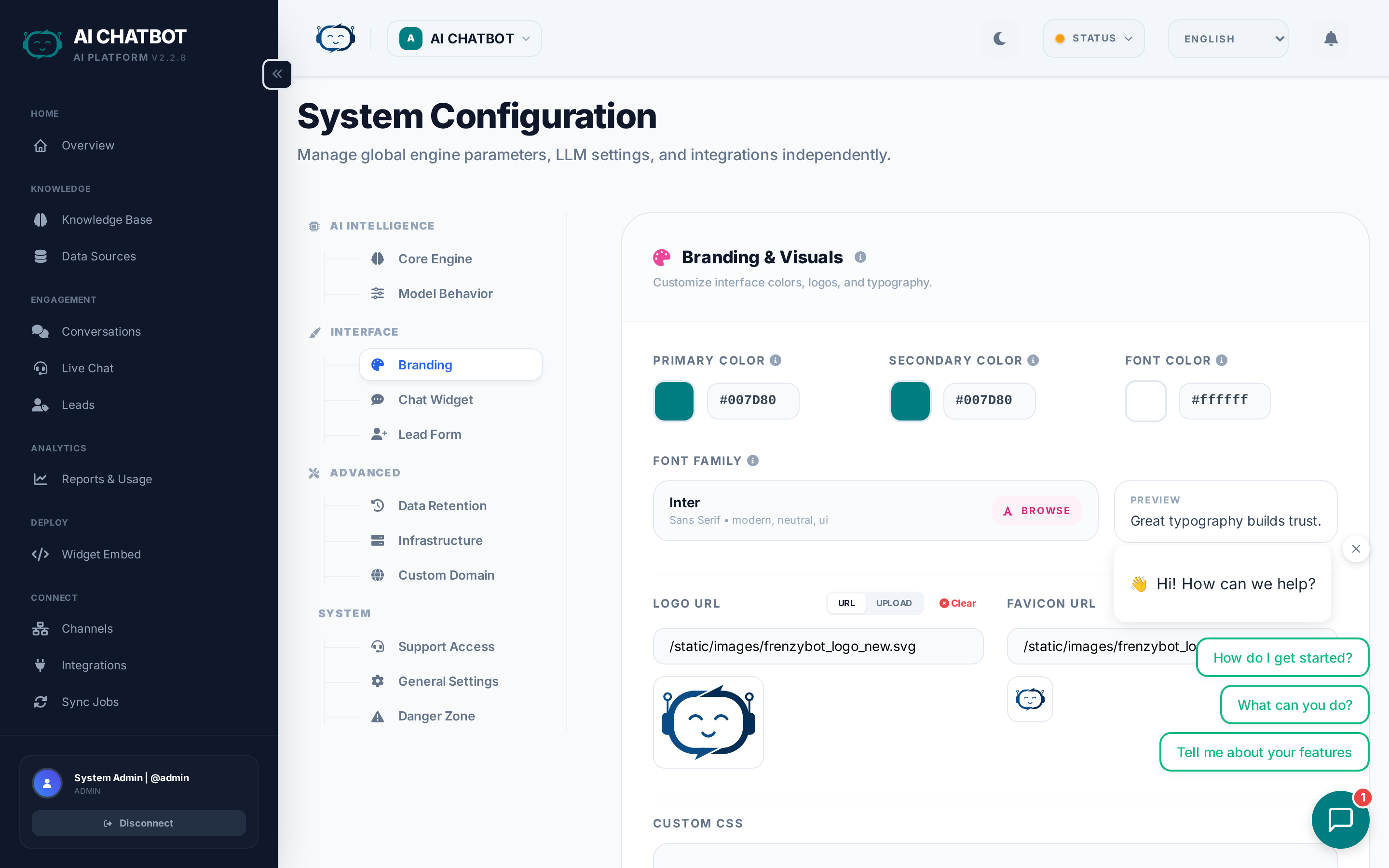
Logo
Your logo appears in the dashboard header and optionally in the widget.
| Requirement | Details |
|---|---|
| Minimum width | 200px |
| Maximum display size | Automatically resized to 350px wide |
| Recommended format | PNG with transparent background |
| Upload method | Drag-and-drop or file picker |
Tips:
- Use a transparent PNG for clean alignment on both light and dark backgrounds.
- Upload at 2x the desired display size for crisp rendering on retina displays.
- Avoid very tall logos — wide/horizontal formats work best in the header.
Favicon
The favicon appears in browser tabs and bookmarks.
| Requirement | Details |
|---|---|
| Minimum size | 16x16 pixels |
| Processing | Cropped to square, resized to max 48x48 |
| Recommended format | PNG or SVG |
Tips:
- Use a simple icon, letter, or symbol — complex images become unreadable at small sizes.
- If your logo is detailed, create a simplified favicon version (e.g., just the first letter or icon mark).
Colors
| Setting | What it controls | Example |
|---|---|---|
| Primary color | Main theme color — widget header, buttons, active states, sidebar highlights | #3b82f6 (blue), #10b981 (green) |
| Secondary color | Accent color — hover states, links, secondary buttons | #6366f1 (indigo), #f59e0b (amber) |
Enter hex color codes directly or use the built-in color picker. Changes preview immediately in the dashboard.
Color tips
- Match your brand — Use your company's primary brand color for consistency across your website and the widget.
- Ensure contrast — Dark colors work best for headers and buttons. Avoid very light colors that won't be readable on white backgrounds.
- Test on the widget — After changing colors, open the widget on your website to verify readability and visual consistency.
Typography
Choose from premium font families. The font selector is language-aware — it automatically shows fonts that support the character sets of your enabled languages.
| Language | Font examples |
|---|---|
| English / Latin | Inter, Poppins, Open Sans, Roboto, Montserrat |
| Hebrew | Heebo, Assistant, Rubik, Open Sans Hebrew |
| Arabic | Cairo, Tajawal, IBM Plex Arabic |
| CJK | Noto Sans CJK (auto-selected) |
The selected font applies to both the dashboard and the widget, ensuring a consistent brand experience for your team and your users.
Widget avatars
The avatar is the profile image users see inside the chat widget. It sets the tone for the conversation — friendly, professional, or branded.
| Option | Details | Best for |
|---|---|---|
| Gallery | Choose from a curated set of pre-designed avatars with large preview cards | Quick setup, professional look |
| Upload | Upload your own image — automatically cropped and optimized to 100x100 PNG | Brand mascot, team photo, custom icon |
| URL | Paste an external image URL | Dynamic avatars from a CDN (note: depends on external host availability) |
Avatar tips
- Use a friendly face or icon — Avatars with a face (human or illustrated) increase engagement by 15–25%.
- Match your brand — If you have a mascot or logo icon, use it for instant brand recognition.
- Avoid text-heavy images — At 100x100 pixels, text becomes unreadable.
Custom CSS
For advanced customization, add custom CSS that overrides default dashboard styles. This is useful for:
- Matching specific corporate style guides beyond primary/secondary colors
- Adjusting spacing, borders, or color nuances
- Hiding or repositioning UI elements for specialized deployments
Example: Custom button style
Use with care
Custom CSS overrides can break the dashboard layout if selectors change during updates. Keep overrides minimal, document what you've changed, and test after each system update.
FAQ
Q: Why does my logo look blurry?
- Upload a larger source image (at least 2x the desired display size) and let the system scale it down. A 700px wide image will look crisp at 350px display size.
Q: Can I use a URL instead of uploading?
- Yes, for logos and avatars. But external URLs can break if the host changes paths or goes offline. Uploading directly is more reliable.
Q: Do branding changes affect the widget immediately?
- Yes. Branding changes (colors, logo, avatar) take effect immediately for new widget sessions. Existing open sessions may need a page refresh to see updates.
Q: Is branding per-bot or global?
- Branding is per-bot. Each bot in a multi-bot setup can have its own colors, logo, and avatar.