WhatsApp Setup
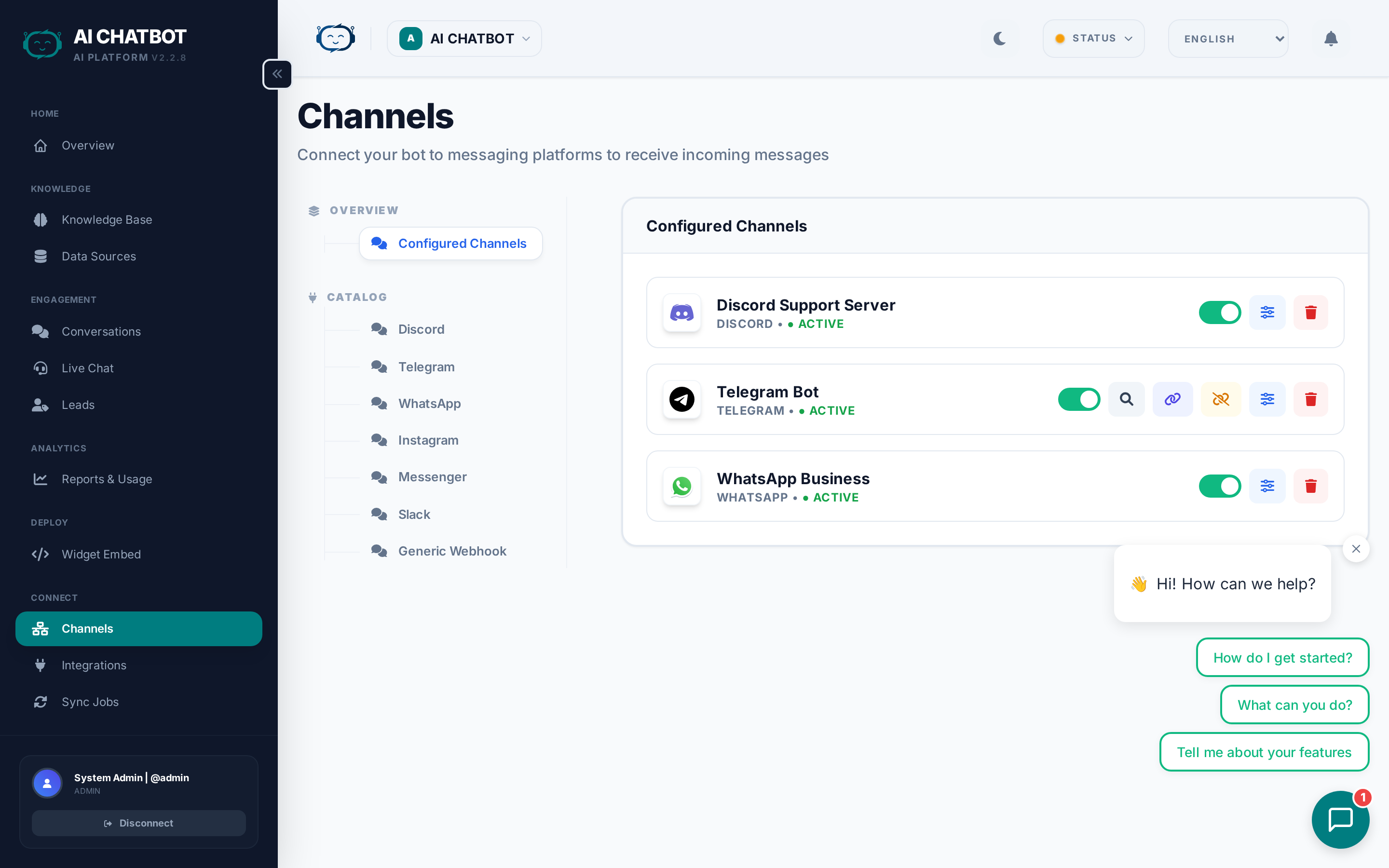
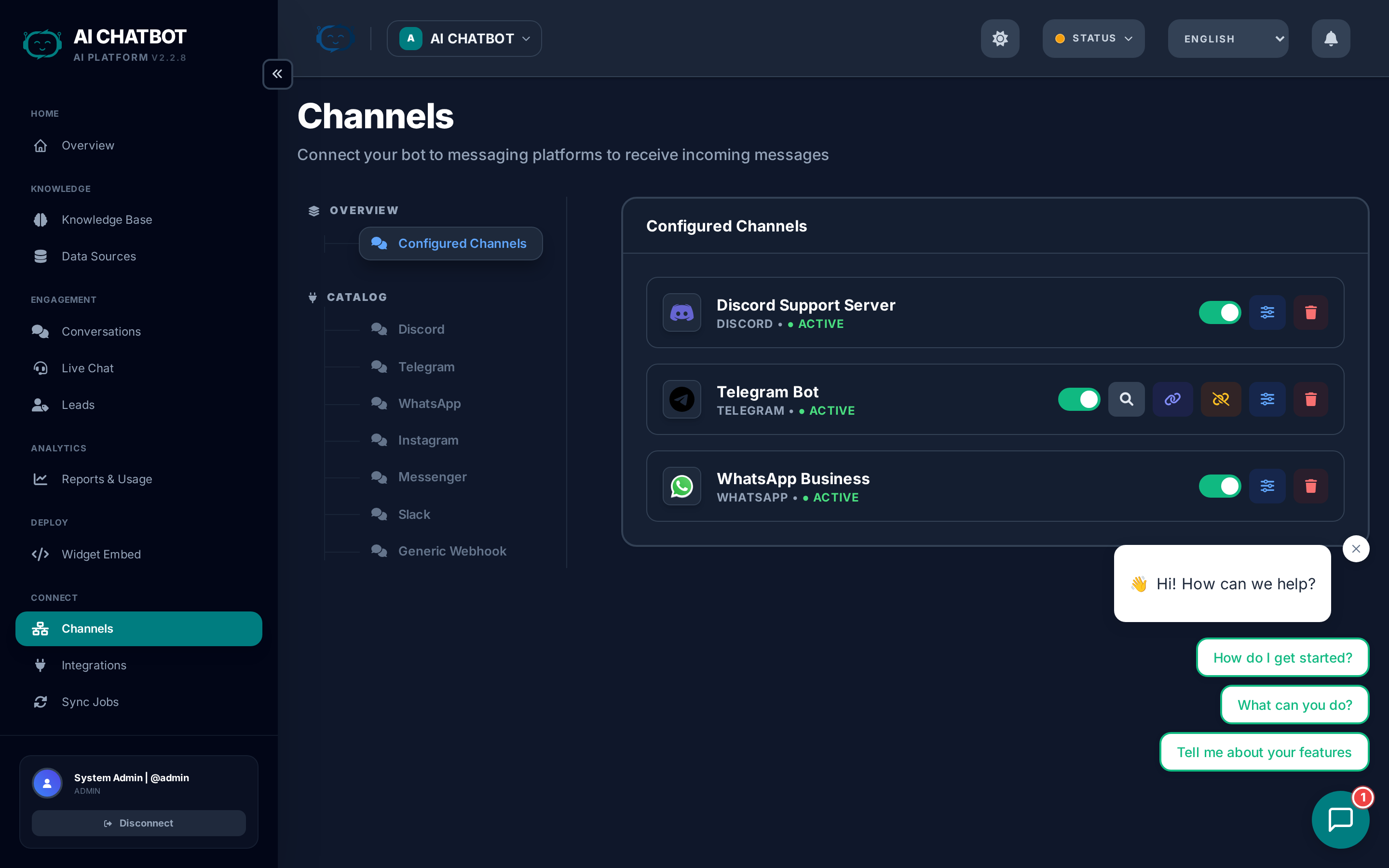
FRENZY.BOT includes a one-click WhatsApp integration powered by WAHA (WhatsApp HTTP API). Once enabled, your AI assistant can receive and respond to WhatsApp messages automatically — with lead capture, handoff support, and conversation tracking.
Prerequisites
- WhatsApp channel enabled in Channels
- A WhatsApp-capable phone number
- WhatsApp service enabled on your server (handled automatically during setup)
Step-by-step setup
Step 1: Add the WhatsApp channel
- Go to Channels in the dashboard sidebar.
- In the Catalog section (left navigation), click WhatsApp.
- Toggle the channel Active.
Automatic installation
The WhatsApp service is pre-installed and ready to go when your server is provisioned. No additional setup is needed beyond activation.
Step 2: Start the WhatsApp service
- Once activated, you'll see the Service Status panel.
- The dashboard shows the service status:
- Running (green): The service is active and ready.
- Starting (amber): The service is booting up. Wait 10–30 seconds.
- Stopped (red): Click Start to launch the service.
- Use the Start / Stop / Restart buttons to control the service.
Step 3: Connect your WhatsApp account
- Once the service shows Running and the API is reachable, the WhatsApp section unlocks.
- Click Connect WhatsApp.
- A QR code appears on screen.
- Open WhatsApp on your phone → Settings → Linked Devices → Link a Device.
- Scan the QR code.
- Wait for the connection status to show Connected.
QR code timing
The QR code refreshes every 30 seconds. If it expires, click Refresh QR to generate a new one. Keep your phone nearby during setup.
Step 4: Test the connection
- Send a message to your WhatsApp number from a different phone.
- The bot should respond using your knowledge base and AI model.
- Check the Conversations page in the dashboard to verify the message appeared.
How it works
Once connected, FRENZY.BOT handles WhatsApp messages end-to-end:
- Incoming message → WAHA receives it and forwards to FRENZY.BOT via webhook.
- AI processing → The bot retrieves relevant knowledge base content and generates a response.
- Response sent → The reply is sent back through WhatsApp to the user.
- Lead capture → If the user provides contact details, a lead is created automatically.
- Handoff → If the user requests a human, the conversation is escalated to your live chat agents.
Channel reply style
WhatsApp responses are automatically adapted for the messaging format:
- Shorter, more conversational replies (under 2 sentences by default).
- Friendly tone suited for mobile messaging.
- You can customize the WhatsApp reply style in Settings → Channels.
Managing the WhatsApp service
Service controls
The dashboard provides direct controls for the WhatsApp service:
| Action | What it does |
|---|---|
| Start | Launches the service if it's stopped |
| Stop | Gracefully stops the service |
| Restart | Stops and restarts (useful after config changes) |
| Status | Shows current state + API health check |
Disconnecting WhatsApp
To disconnect your WhatsApp account without removing the module:
- Go to Settings → WhatsApp.
- Click Disconnect.
- The bot stops receiving WhatsApp messages immediately.
- Historical conversations and leads are preserved.
To reconnect later, simply scan a new QR code.
Security
- The WhatsApp service is firewalled and only accessible from your server.
- API keys are generated automatically and stored securely.
- WhatsApp messages are processed on your private server — they never pass through third-party cloud services.
FAQ
Q: The QR code won't scan.
- Make sure the WAHA service shows Running and the API health check is green.
- Try refreshing the QR code.
- Ensure your phone has a stable internet connection.
Q: Messages are not being received.
- Check that the WhatsApp session status shows Connected.
- Verify the webhook URL is correctly configured (this is automatic in most setups).
- Contact your account manager if the issue persists.
Q: Can I use WhatsApp Business API instead?
- FRENZY.BOT currently uses WAHA (device-based WhatsApp). WhatsApp Business API (cloud-based) support is on the roadmap.
Q: How many conversations can WhatsApp handle?
- The NOWEB engine is lightweight and handles standard business volumes efficiently. For very high volume (1000+ concurrent chats), contact your account manager for scaling options.
Q: Will I lose my WhatsApp chat history if I restart the service?
- No. Restarting the service preserves the WhatsApp session. You only need to re-scan the QR code if you explicitly disconnect.