Multi-Bot Workspaces
FRENZY.BOT supports running multiple isolated AI bots from a single installation. Each bot has its own knowledge base, settings, team access, conversations, and widget — completely separated from every other bot on the same server.
Why multi-bot?
- Agencies: Manage bots for multiple clients from one dashboard.
- Multi-brand companies: Each brand gets its own AI assistant with separate branding and data.
- Departments: Sales, Support, and HR can each have a specialized bot without data overlap.
- Testing: Create a staging bot to test changes before applying them to production.
How it works
Data isolation
Every bot gets its own:
| Component | Isolation |
|---|---|
| Knowledge base | Separate Qdrant vector collection per bot |
| Files | Stored in data/uploads/{bot_id}/ |
| Settings | Bot-scoped settings in the database |
| Conversations | Filtered by bot_id |
| Leads | Scoped to the bot that captured them |
| Analytics | Per-bot metrics and funnel tracking |
| Widget | Separate embed code with unique data-bot-id |
| Activity logs | Scoped to bot-level actions |
Team membership
- Admins can access all bots.
- Regular users only see bots they've been assigned to.
- When a new bot is created, the creator is automatically added as a member.
Creating a new bot
- Click the workspace dropdown in the top-right of the dashboard header.
- Click + New Bot.
- Fill in the details:
- Bot name: A human-readable label (e.g., "Sales Assistant").
- Bot ID: Auto-generated slug from the name (e.g.,
sales-assistant). You can customize it.
- Click Create.
The system automatically:
- Creates a new Qdrant vector collection for the bot.
- Sets up isolated file storage.
- Adds you as the first member.
Bot ID format
Bot IDs must be lowercase alphanumeric with hyphens only, between 3 and 64 characters. This ID is used in embed code and API calls — choose something clean and permanent.
Switching between bots
Use the workspace dropdown in the dashboard header:
- Click the current bot name in the header.
- Select the bot you want to switch to.
- The dashboard reloads with that bot's data.
Your selection is saved in a session cookie, so it persists across page loads.
Managing bots
Bot management page
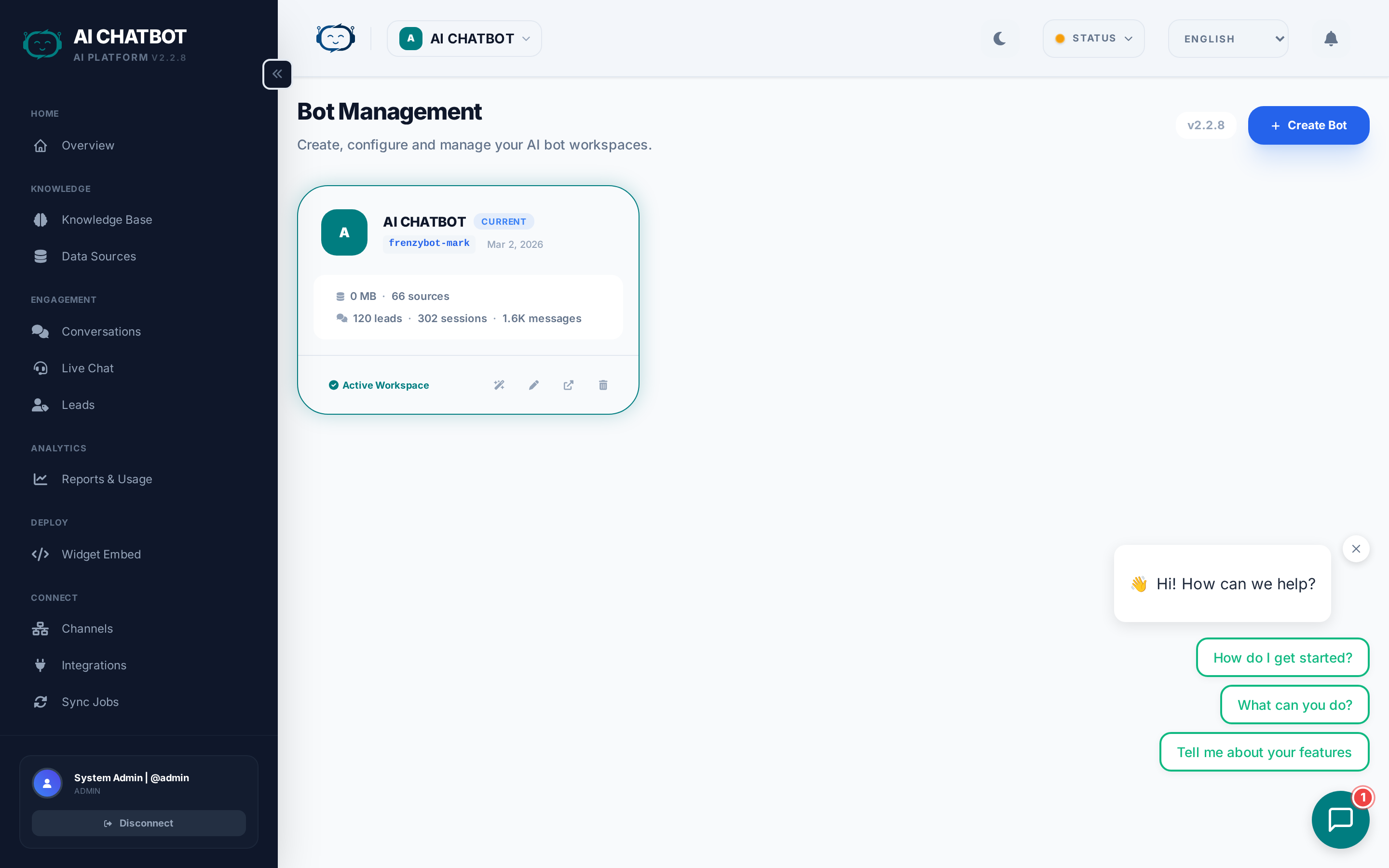
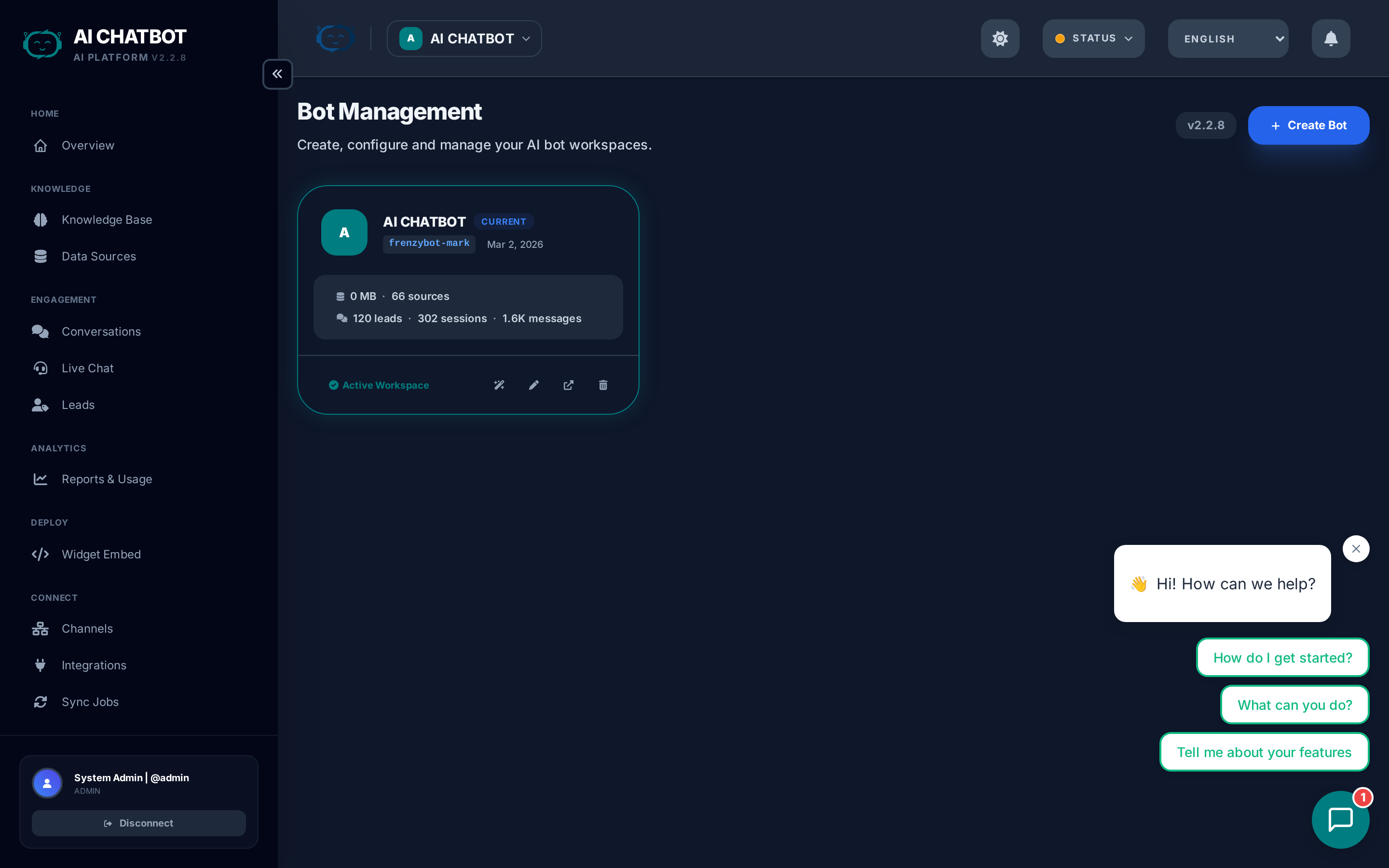
Go to the workspace dropdown → Manage All Bots to see every bot in a card grid:
- Stats per bot: Files, messages, sessions, leads, active sessions.
- Current bot badge: Shows which bot you're currently working in.
- Default bot badge: Marks the system's default bot.
- Create / Edit / Delete: Full lifecycle management from this page.
Editing a bot
Click a bot card to update its name or description. The Bot ID cannot be changed after creation.
Deleting a bot
Deleting a bot performs a cascading cleanup:
- Removes the Qdrant vector collection.
- Deletes all files, messages, sessions, leads, and activity logs.
- Removes all team memberships for that bot.
Default bot protection
The default bot cannot be deleted. This prevents accidental removal of your primary bot.
Team membership
Adding members
- Open the bot management page.
- Select a bot.
- Click Members → Add Member.
- Choose a user from the dropdown.
Removing members
Select a member and click Remove. The user will no longer see this bot in their workspace dropdown.
Access rules
- Admins always see all bots regardless of membership.
- Manager / Staff roles only see bots they've been explicitly added to.
- Membership is separate from RBAC — a user can be a member of a bot but still restricted by their role's module permissions.
Bot-scoped widget embed
Each bot gets its own widget embed code:
<script
  src="https://yourdomain.com:8321/chatbot-widget/v1/js/loader.js"
  data-bot-id="sales-assistant"
  data-bot-name="Sales Assistant"
  data-theme-color="#3b82f6"
  data-backend-url="https://yourdomain.com:8321"
  async>
</script>
The data-bot-id attribute determines which bot handles the conversation. Each bot's widget uses its own:
- System prompt
- Branding and colors
- Welcome message and suggested questions
- Lead form configuration
- Language settings
Go to Dashboard → Embed to generate the correct snippet for the currently selected bot.
FAQ
Q: Is there a limit on how many bots I can create?
- There is no hard-coded limit. Practical limits depend on your server resources (RAM, disk, CPU).
Q: Can two bots share the same knowledge base?
- Not directly. Each bot has its own Qdrant collection. You can upload the same files to multiple bots.
Q: What happens to a bot's data when I delete it?
- Everything is deleted: vector collection, files, conversations, leads, activity logs, and memberships. This action is permanent and cannot be undone.
Q: Can I transfer a bot to another server?
- Export the bot's files and database records, then re-import on the target server. A built-in migration tool is on the roadmap.
Q: Do bots share the same OpenRouter API key?
- Yes. The AI provider connection is server-level, shared across all bots. Each bot can have its own model selection and behavior settings.