Setup Wizard Guide
The FRENZY.BOT Setup Wizard is a guided, step-by-step interface that helps you configure your AI chatbot from scratch. This interactive wizard walks you through all essential settings in a user-friendly, visual flow.
Overview
The Setup Wizard automatically appears when you first log into a fresh FRENZY.BOT installation. It's designed to get your chatbot operational in under 10 minutes by guiding you through:
- Welcome & Introduction - Overview of the setup process
- AI Engine Connection - Connect to OpenRouter for AI models
- Knowledge Base Setup - Add your business data
- Channels & Integrations - Connect messaging platforms
- Branding Customization - Personalize your bot's appearance
- Widget Configuration - Set up the chat widget
- Completion & Embed Code - Get your website embed code
Accessing the Setup Wizard
First-Time Access
- Automatic: The wizard appears automatically on first login after installation
- URL: Direct access at
/dashboard/setup-wizard - Skip Option: You can skip the wizard and access it later from the dashboard
Returning to the Wizard
If you've skipped the wizard or want to revisit it:
- Log in to your dashboard
- Look for the "Setup Wizard" card on the Overview page
- Or navigate directly to
/dashboard/setup-wizard
Step-by-Step Guide
Step 0: Welcome Screen
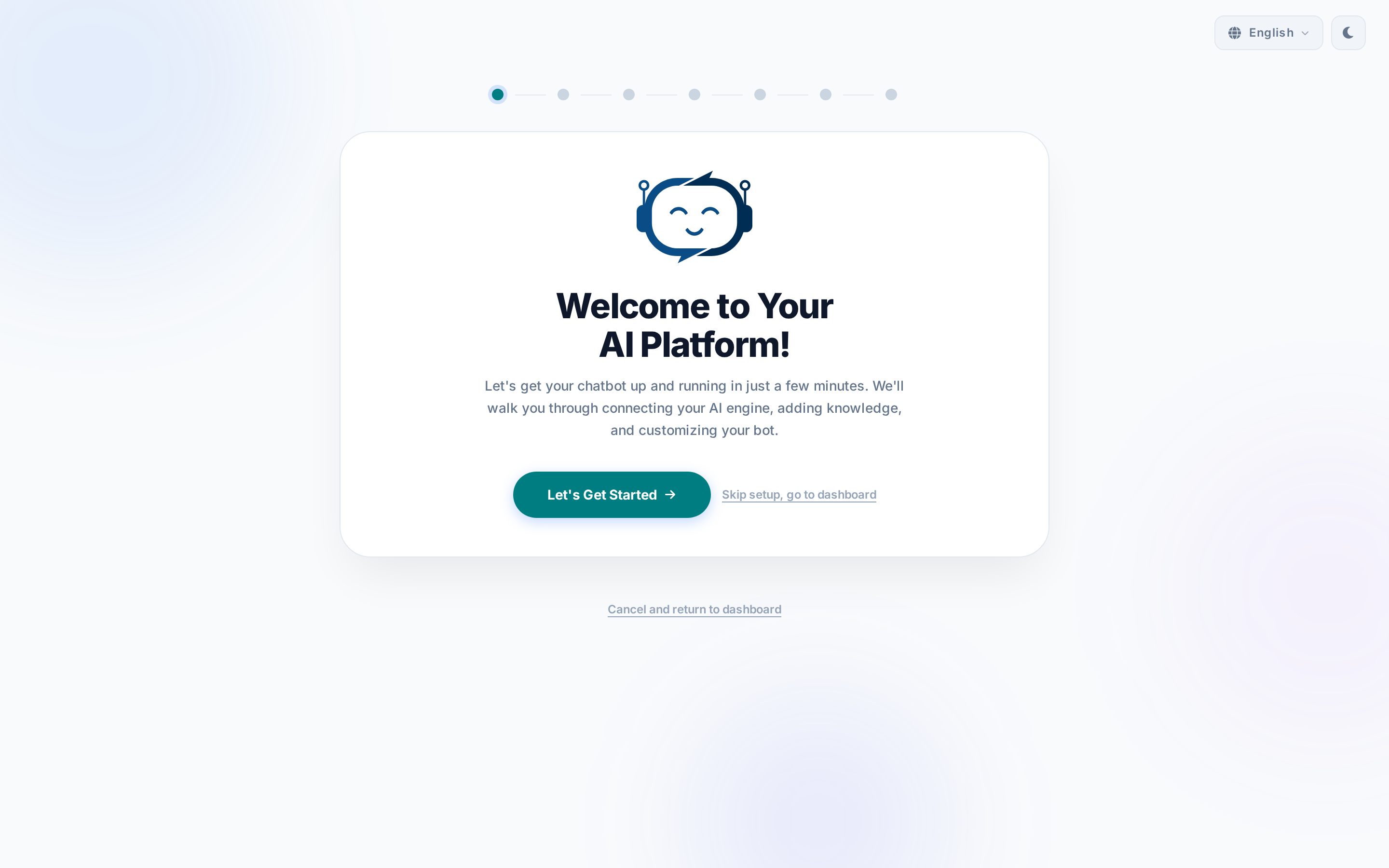
The welcome screen introduces you to FRENZY.BOT and outlines what you'll accomplish.
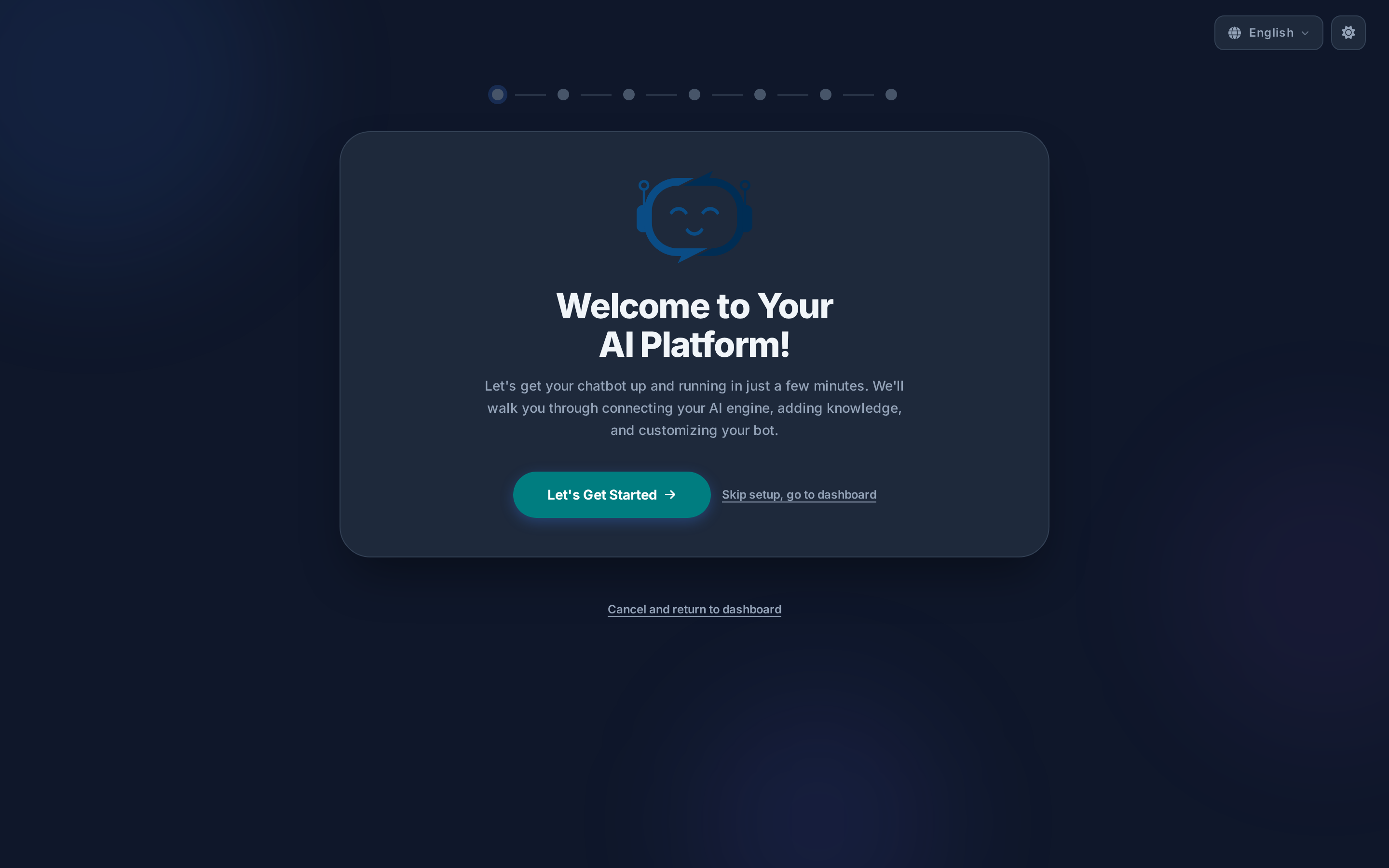
Features: - Language Selection: Choose from 10 supported languages - Theme Toggle: Switch between light and dark modes - Progress Indicator: Visual dots showing all 7 steps - Skip Option: Bypass the wizard if you're experienced
Actions: - Click "Let's Get Started" to begin - Click "Skip setup, go to dashboard" to exit
Step 1: Connect Your AI Engine
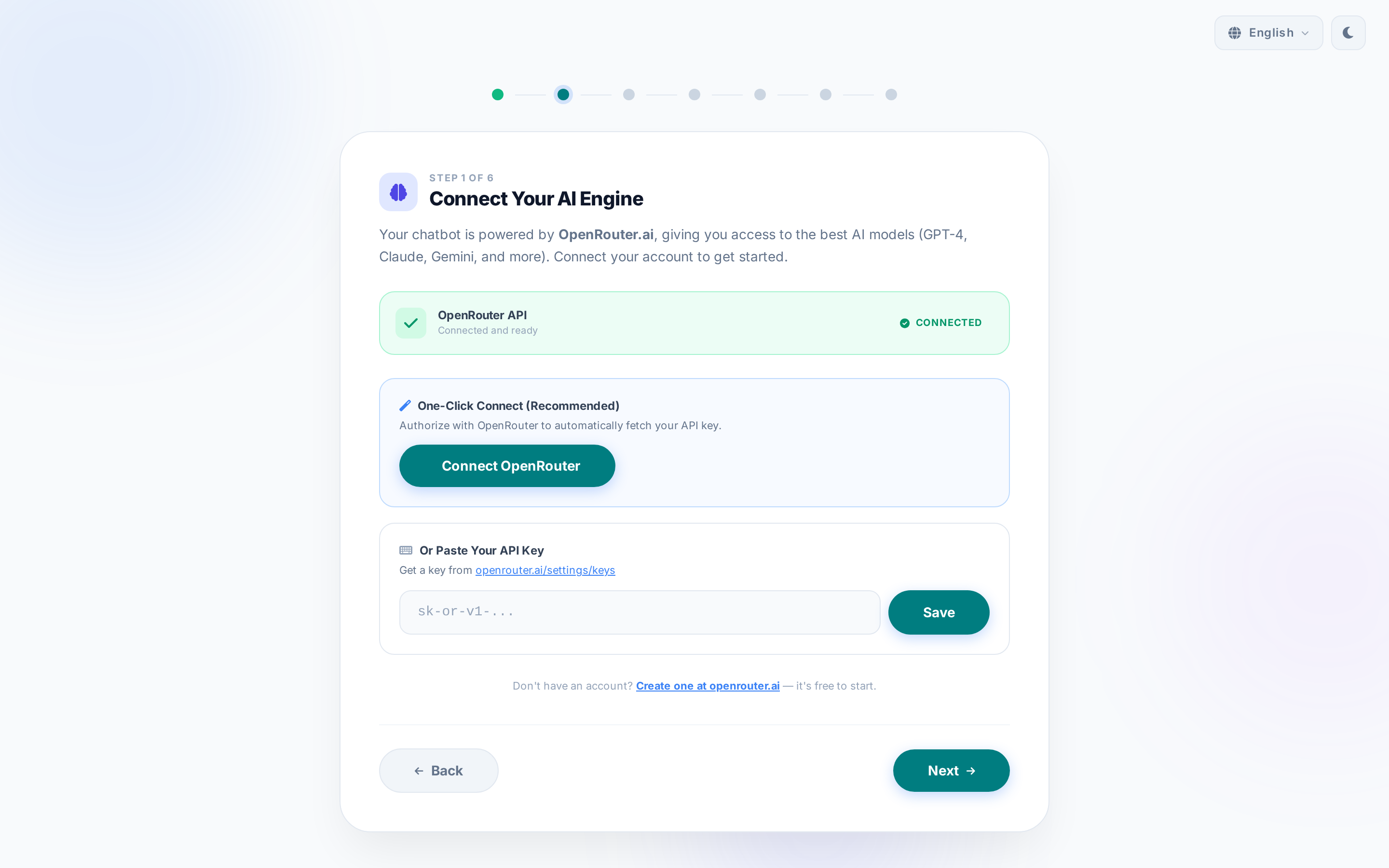
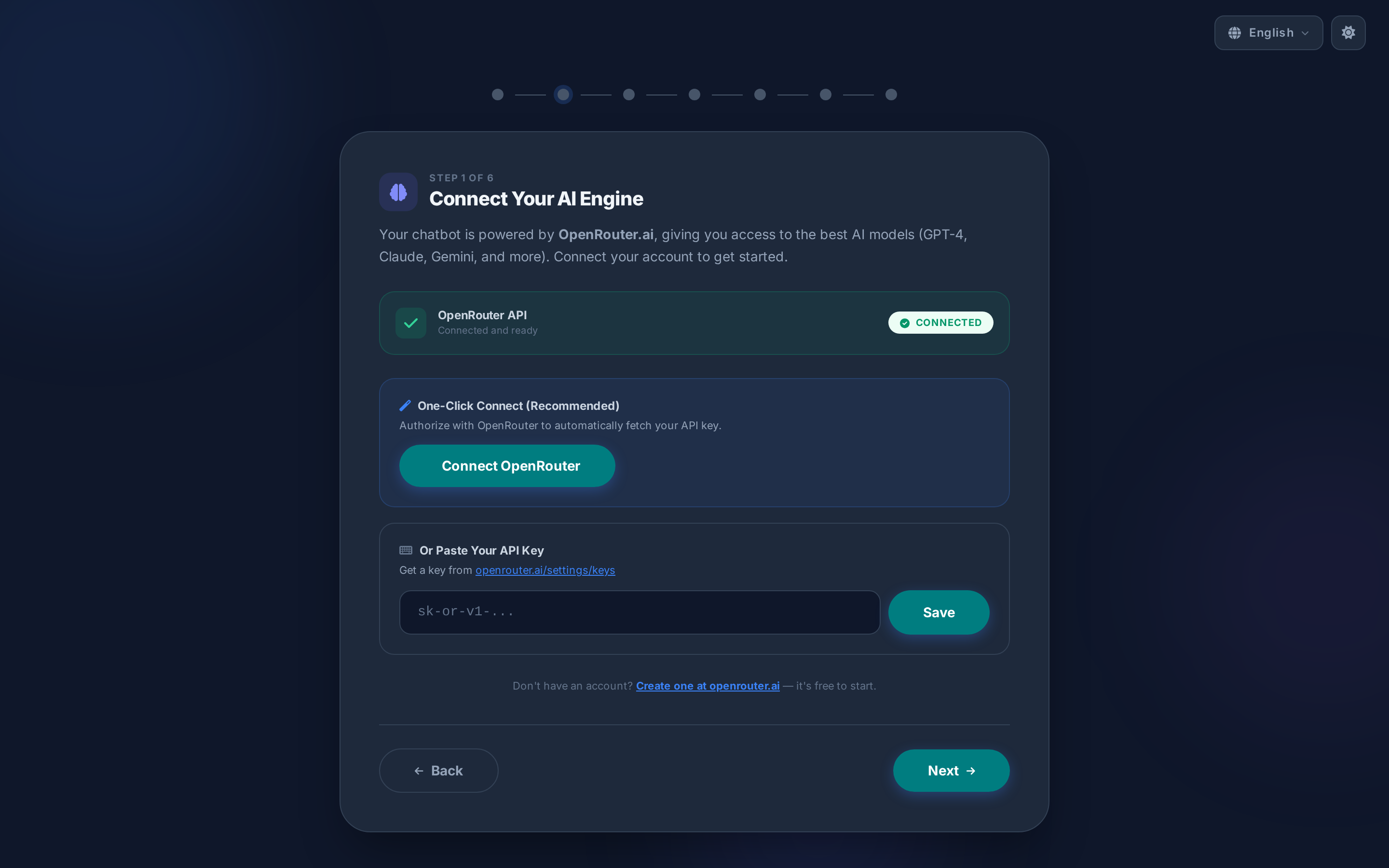
Connect your chatbot to OpenRouter.ai to access powerful AI models like GPT-4, Claude, and Gemini.
Connection Methods:
1. One-Click OAuth (Recommended) - Click "Connect OpenRouter" - Authorize FRENZY.BOT in your OpenRouter account - Automatic API key retrieval
2. Manual API Key - Visit openrouter.ai/settings/keys - Generate a new API key - Copy and paste the key into the wizard
Status Indicators:
- Green "Connected": API key is valid and ready
- Red "Not Connected": Need to connect or fix credentials
Tips: - You can skip this step and return later - Free OpenRouter accounts include starter credits - Connected status persists across sessions
Step 2: Add Your Knowledge
Give your chatbot the information it needs to answer questions about your business.
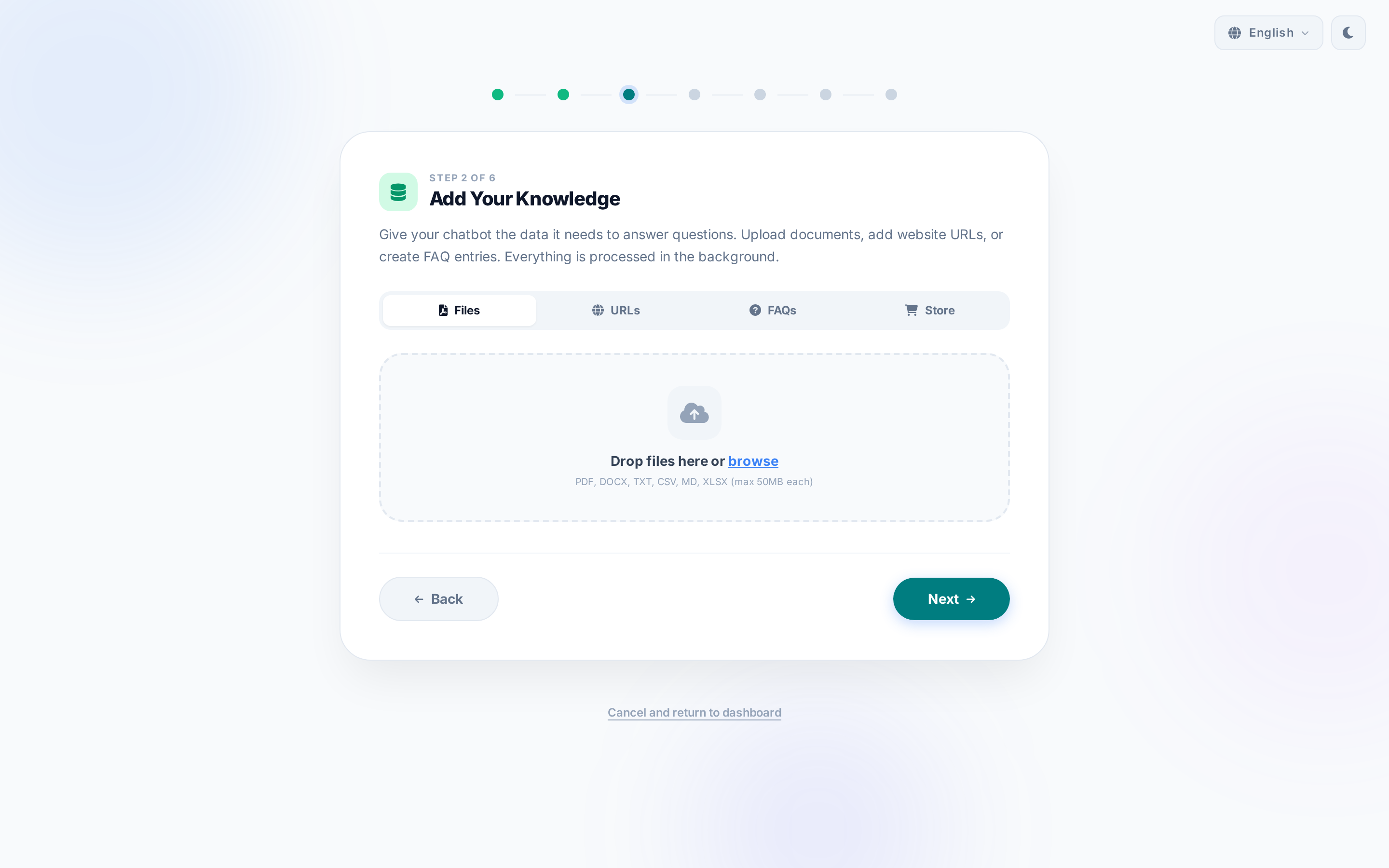
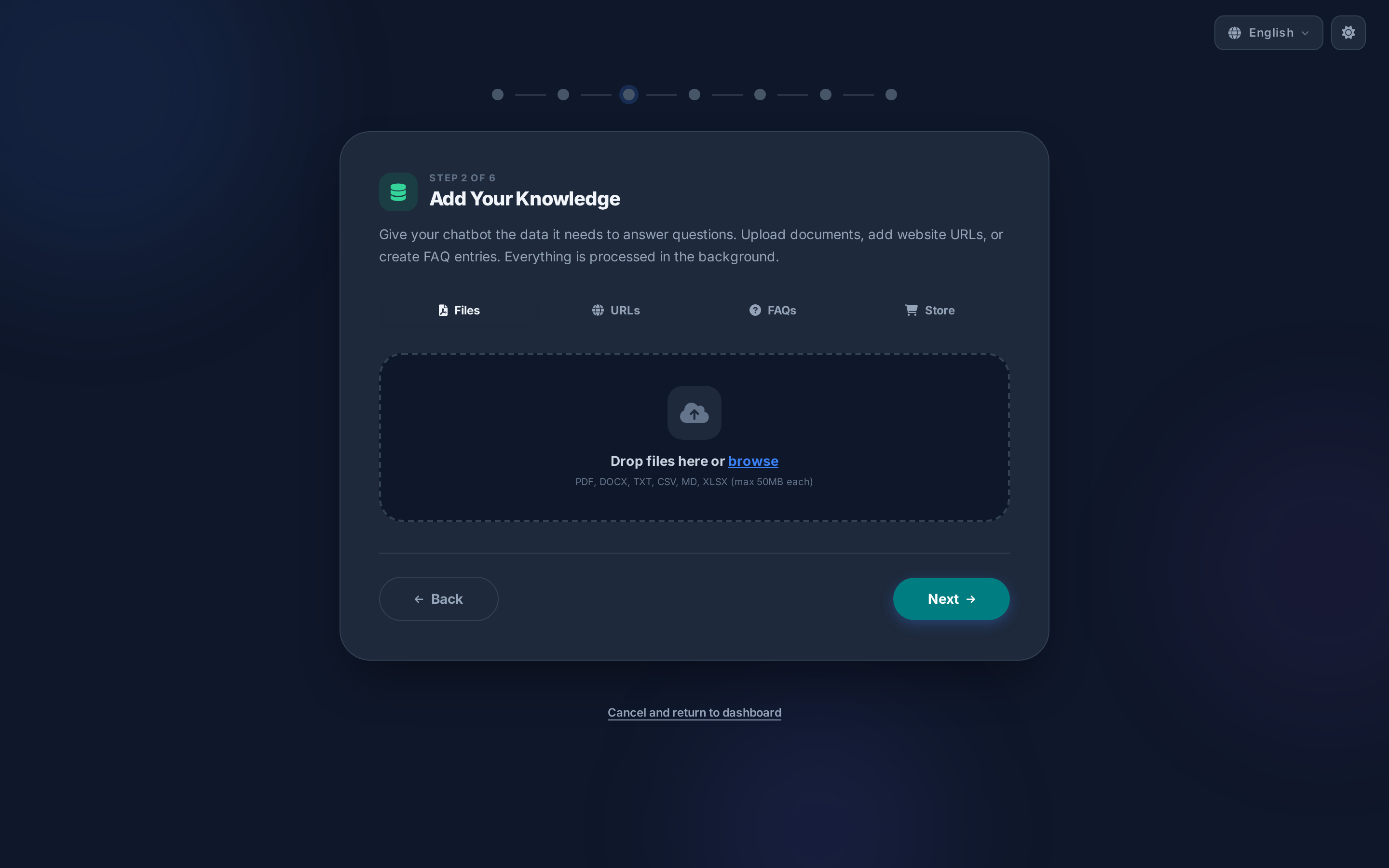
Four Ways to Add Content:
1. Files Upload - Supported formats: PDF, DOCX, TXT, CSV, MD, JSON, XLSX - Maximum file size: 50MB per file - Drag-and-drop or browse to select - Multiple files supported
2. Website URLs - Add individual pages or entire sitemaps - Automatic content extraction and cleaning - Sitemap support with category selection - Real-time URL validation
3. FAQs - Create question-answer pairs manually - Perfect for pricing, policies, and common queries - Instant indexing - no processing wait time - Priority over document content in responses
4. E-Commerce Store (WooCommerce) - Connect your WooCommerce store - Sync products, variants, pricing, and inventory - Requires API keys (Read permission recommended) - Real-time product knowledge
Best Practices:
- Start with 3-5 key documents
- Include your most important FAQs
- Add your main website URL
- Content processes in the background - you can continue
Step 3: Channels & Integrations
Connect your chatbot to messaging platforms and third-party services.
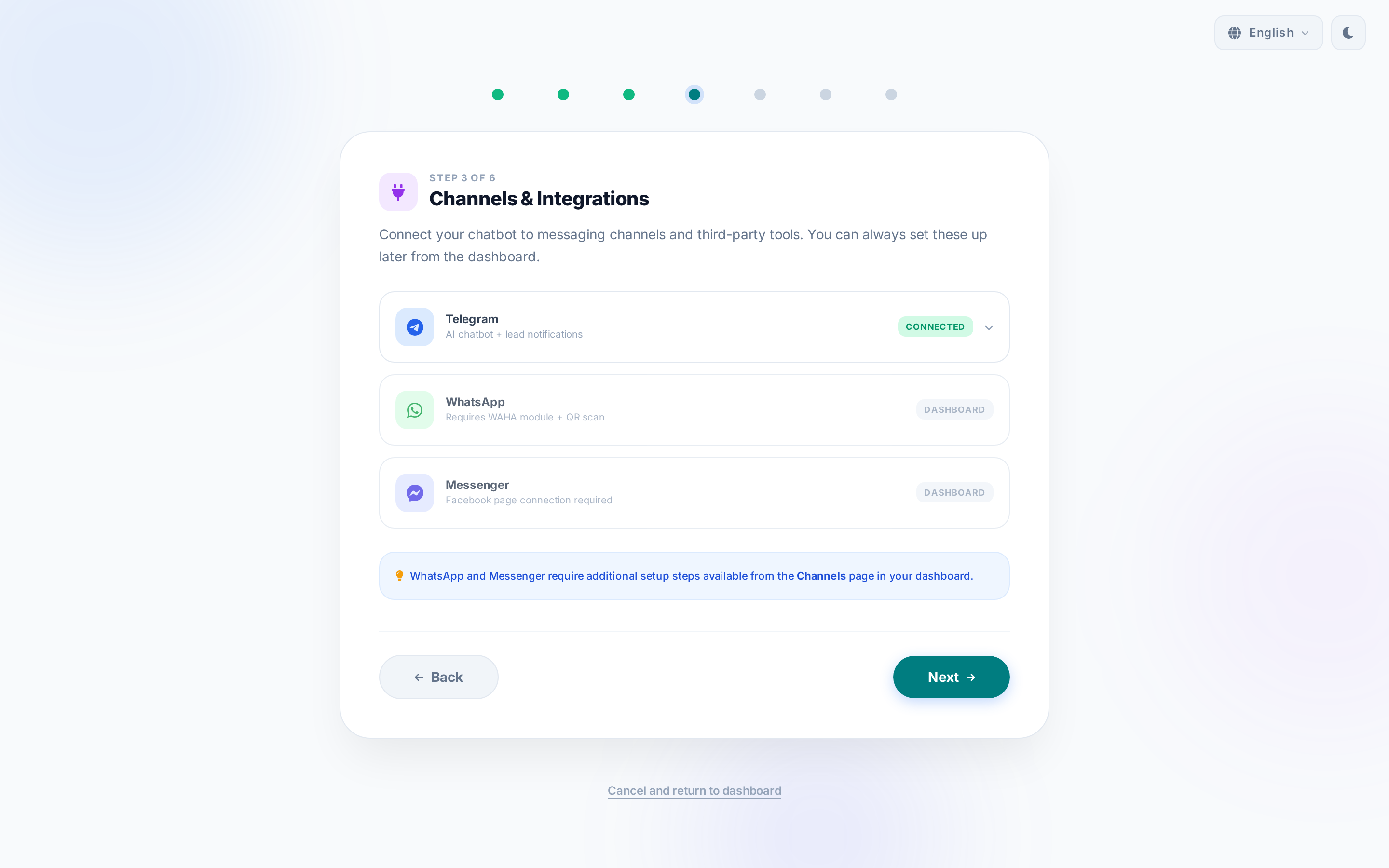
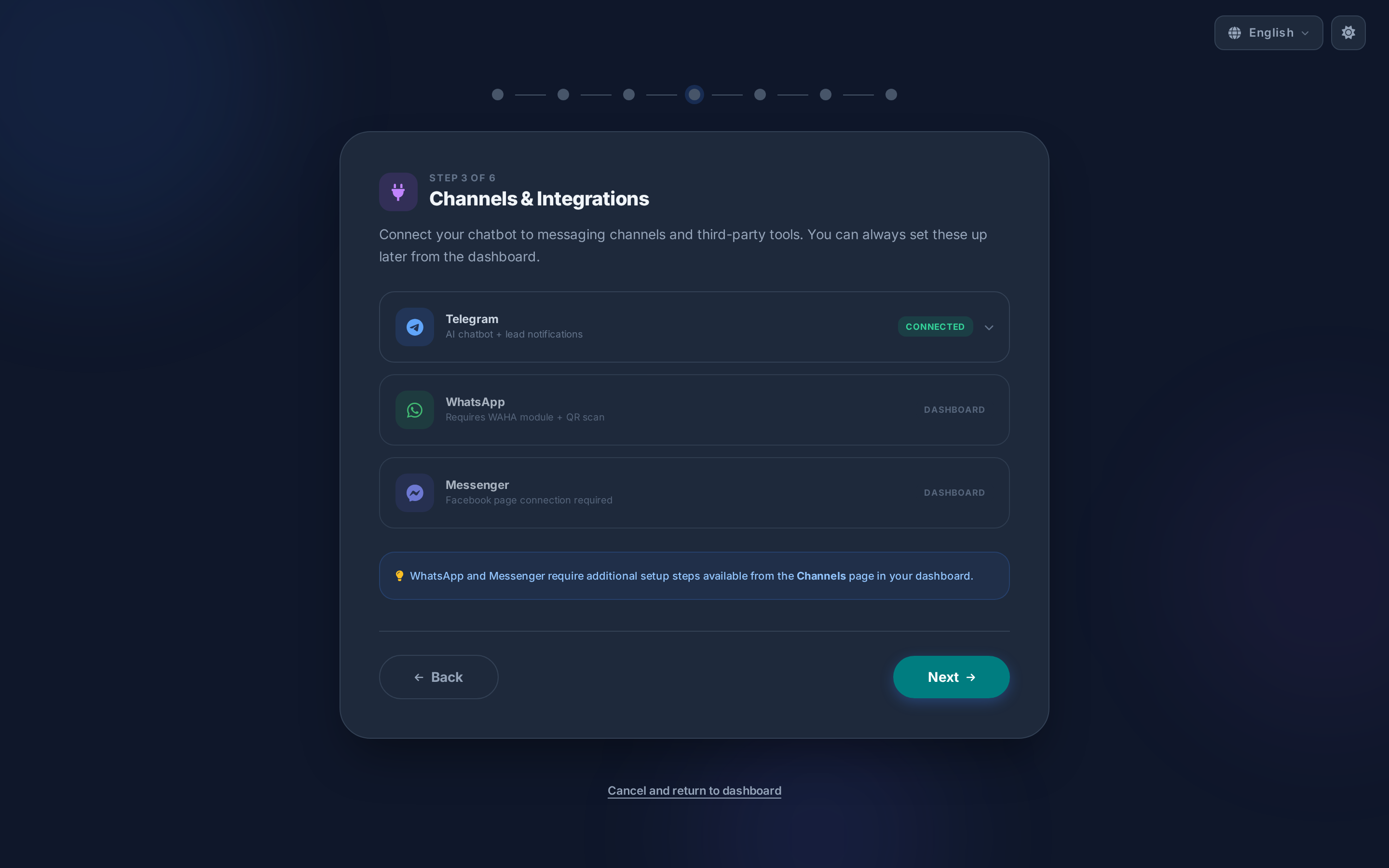
Available Channels:
1. Telegram - Unified setup for bot chat + lead notifications - Step-by-step BotFather integration - Token-based authentication - Optional lead capture notifications
2. WhatsApp - WAHA integration for WhatsApp Business API - QR code scanning for session setup - Message templates and automation - Advanced webhook configuration
3. Discord - Server invitation and bot permissions - Channel-specific responses - Rich embed support - Community engagement features
4. Meta (Instagram & Messenger) - Facebook Page connection - Instagram DM automation - Unified Meta Business Suite - Social media integration
Integration Status:
- Green "Connected": Successfully configured
- Gray "Set Up": Needs configuration
- Expandable panels for each channel
- Detailed setup instructions included
Step 4: Customize Your Brand
Personalize your chatbot's appearance to match your brand identity.
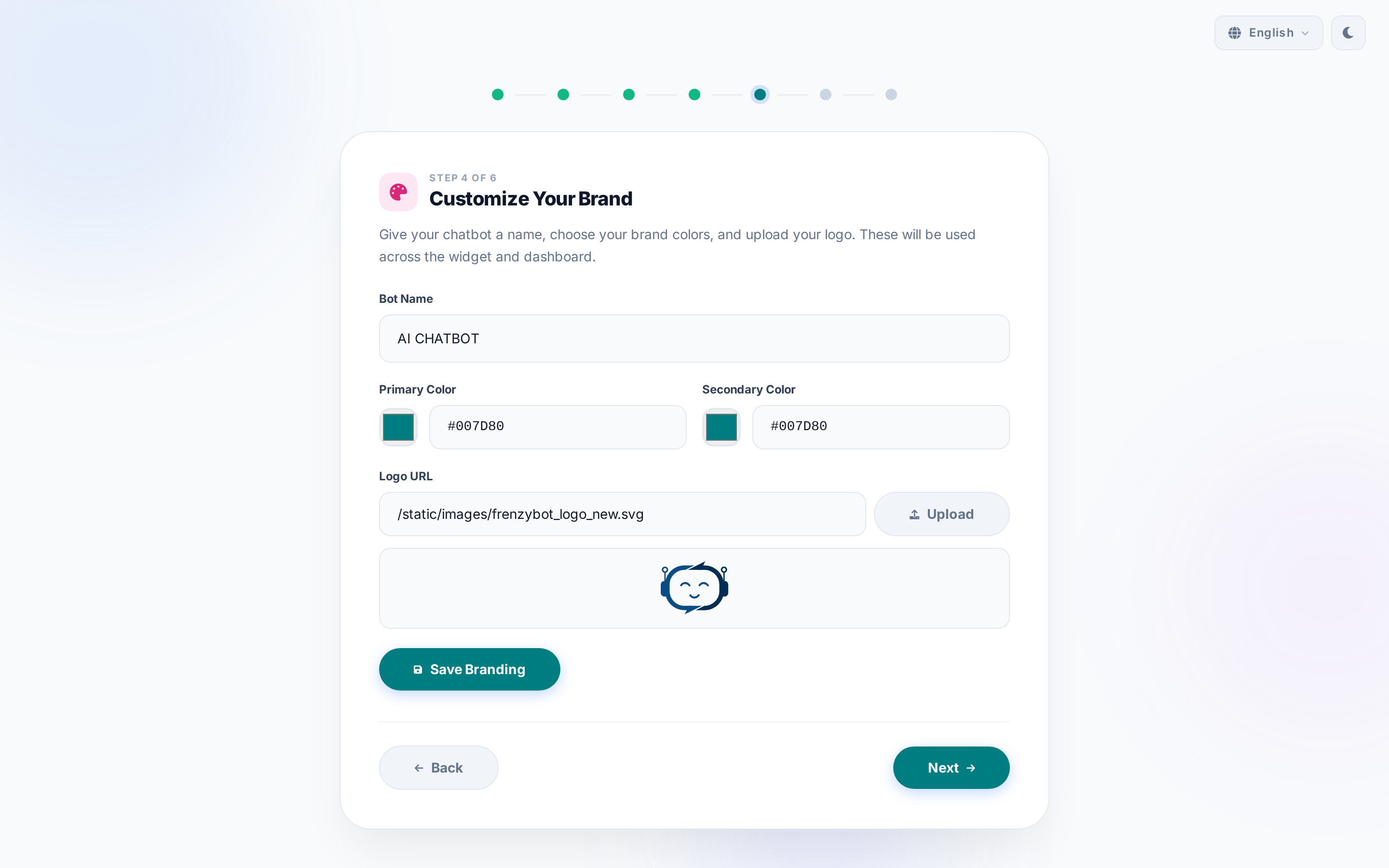
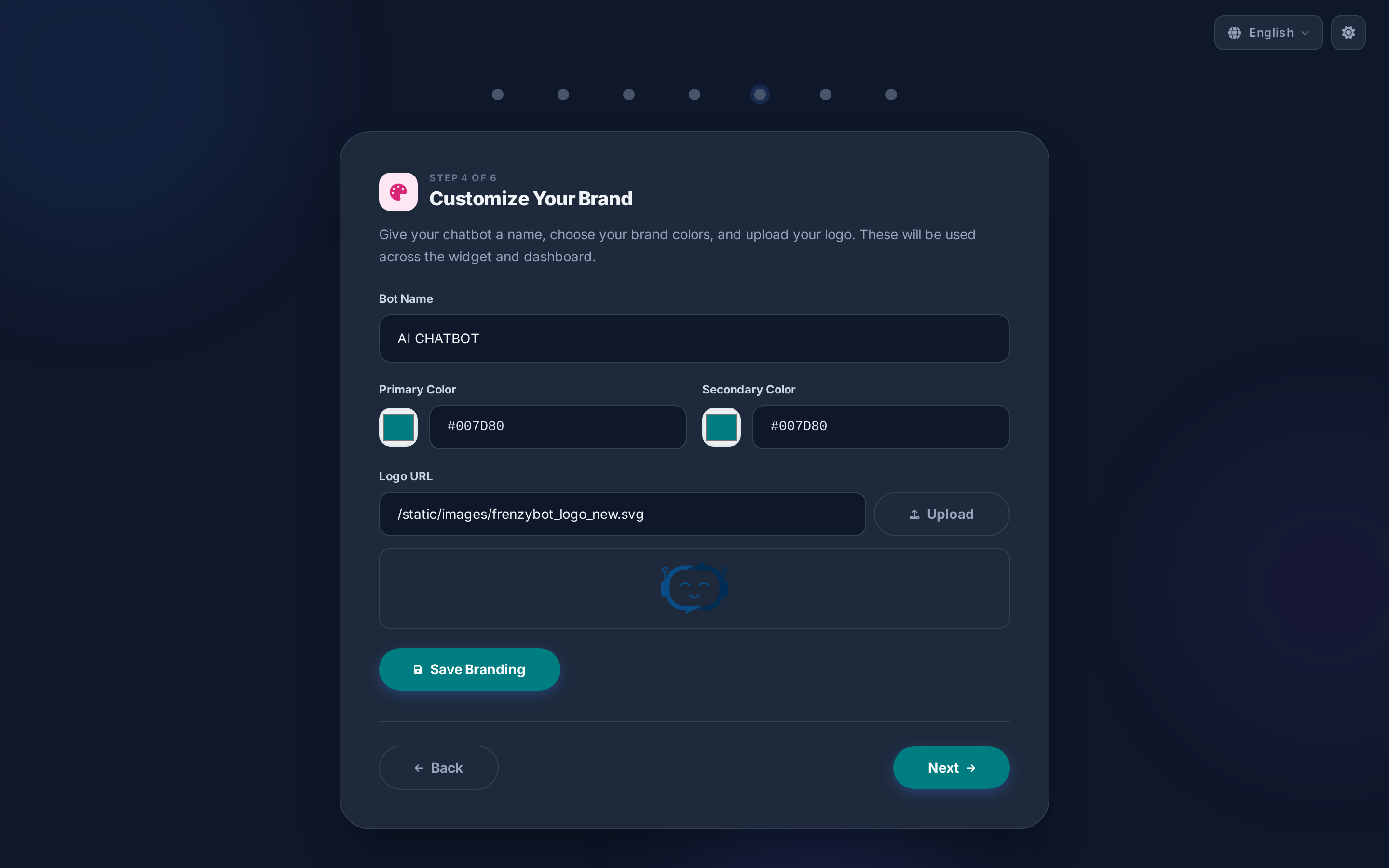
Branding Options:
1. Bot Name - Display name for your chatbot - Appears in widget headers and responses - Can be changed later in Settings
2. Logo Upload - Upload your company logo - Recommended size: 200x200px - Supports PNG, JPG, SVG formats - Automatic resizing and optimization
3. Brand Colors - Primary Color: Main theme color (buttons, accents) - Secondary Color: Hover states and gradients - Real-time preview - Preset color palettes available
4. Theme Color Preview - Live preview of color changes - Shows widget appearance - Light and dark mode compatibility
Step 5: Widget Basics
Configure the basic appearance and behavior of your website chat widget.
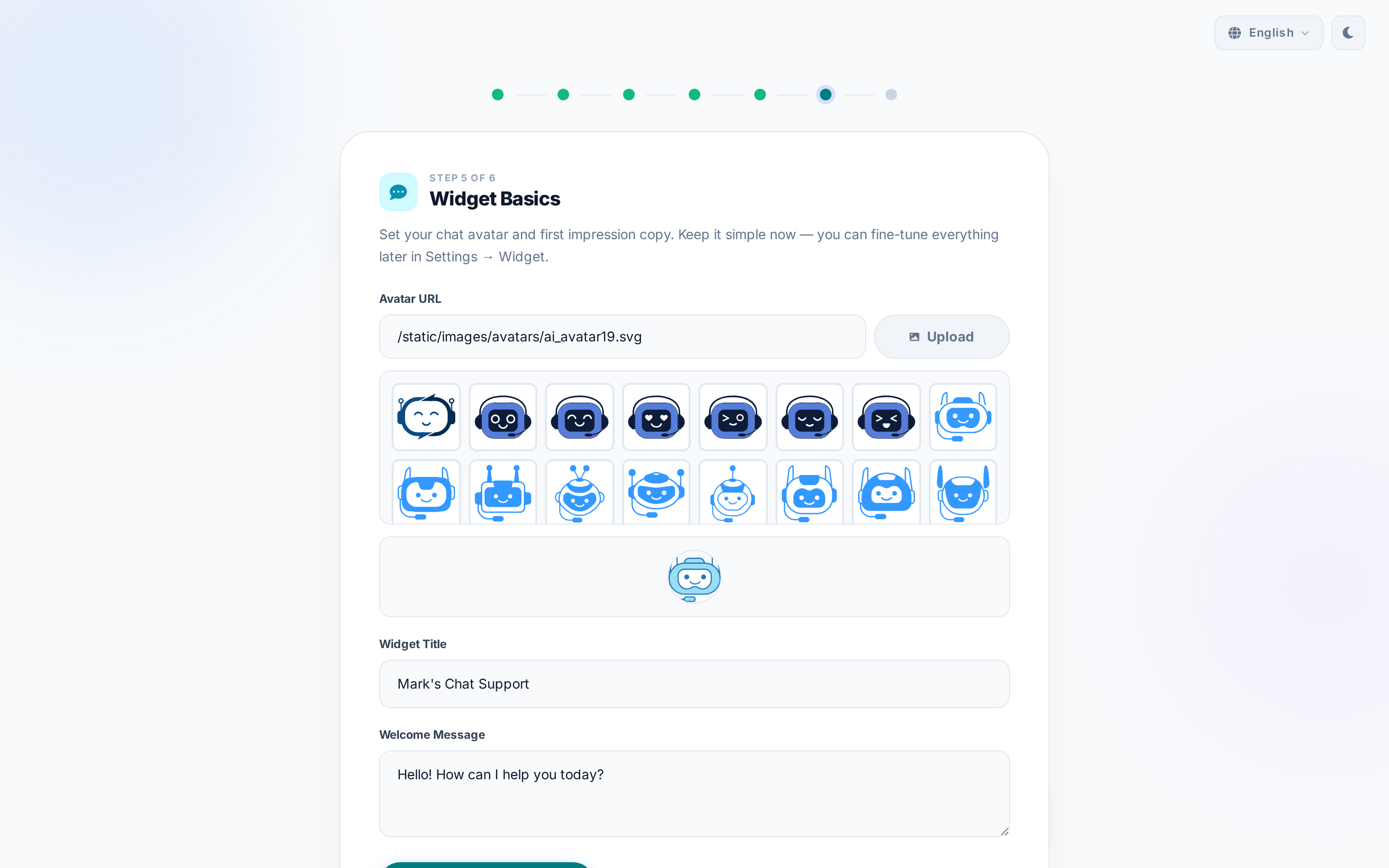
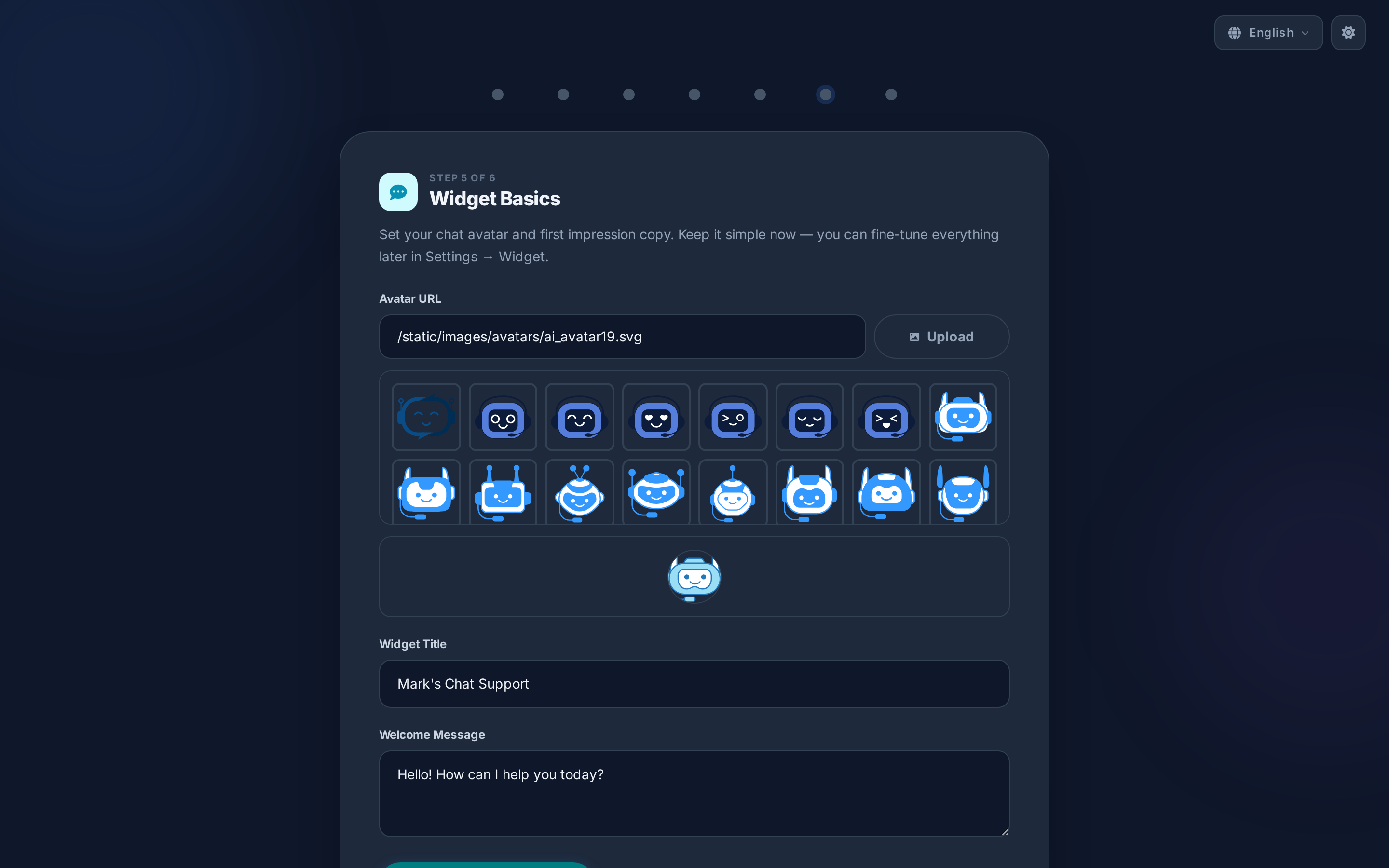
Widget Settings:
1. Widget Title - Header text in the chat widget - Default: "Ask AI" - Can be your bot name or custom greeting
2. Welcome Message - First message users see - Sets expectations for the conversation - Supports emojis and formatting - Example: "Hello! How can I help you today?"
3. Chat Avatar - Profile picture for the bot - Upload custom image or use URL - Recommended: 400x400px - Circular display with fallback to initials
Advanced Options (in Dashboard):
- Lead capture forms
- Sound notifications
- Position on screen
- Auto-trigger rules
- Custom CSS
Step 6: You're All Set!
The final step provides your embed code and completion options.
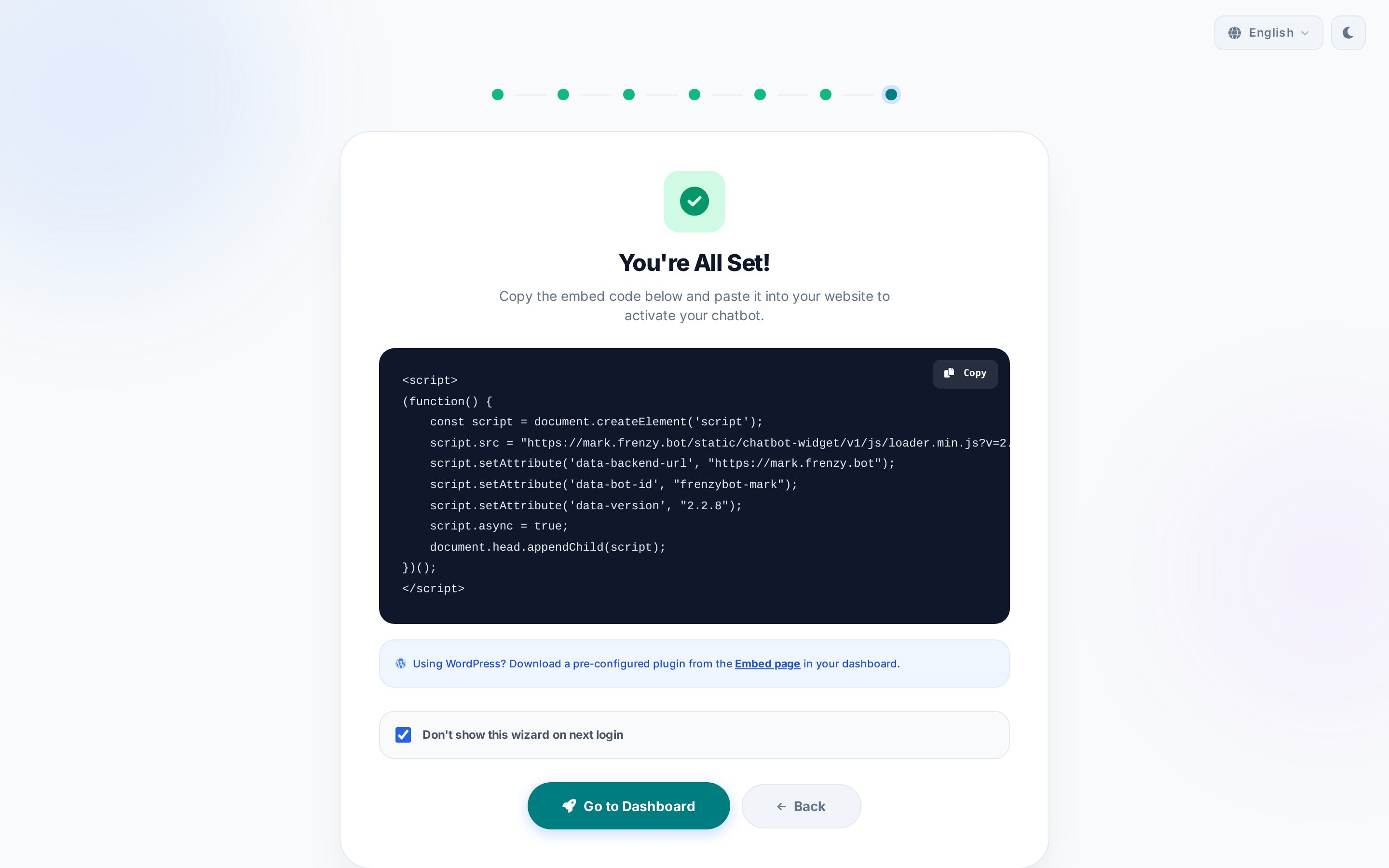
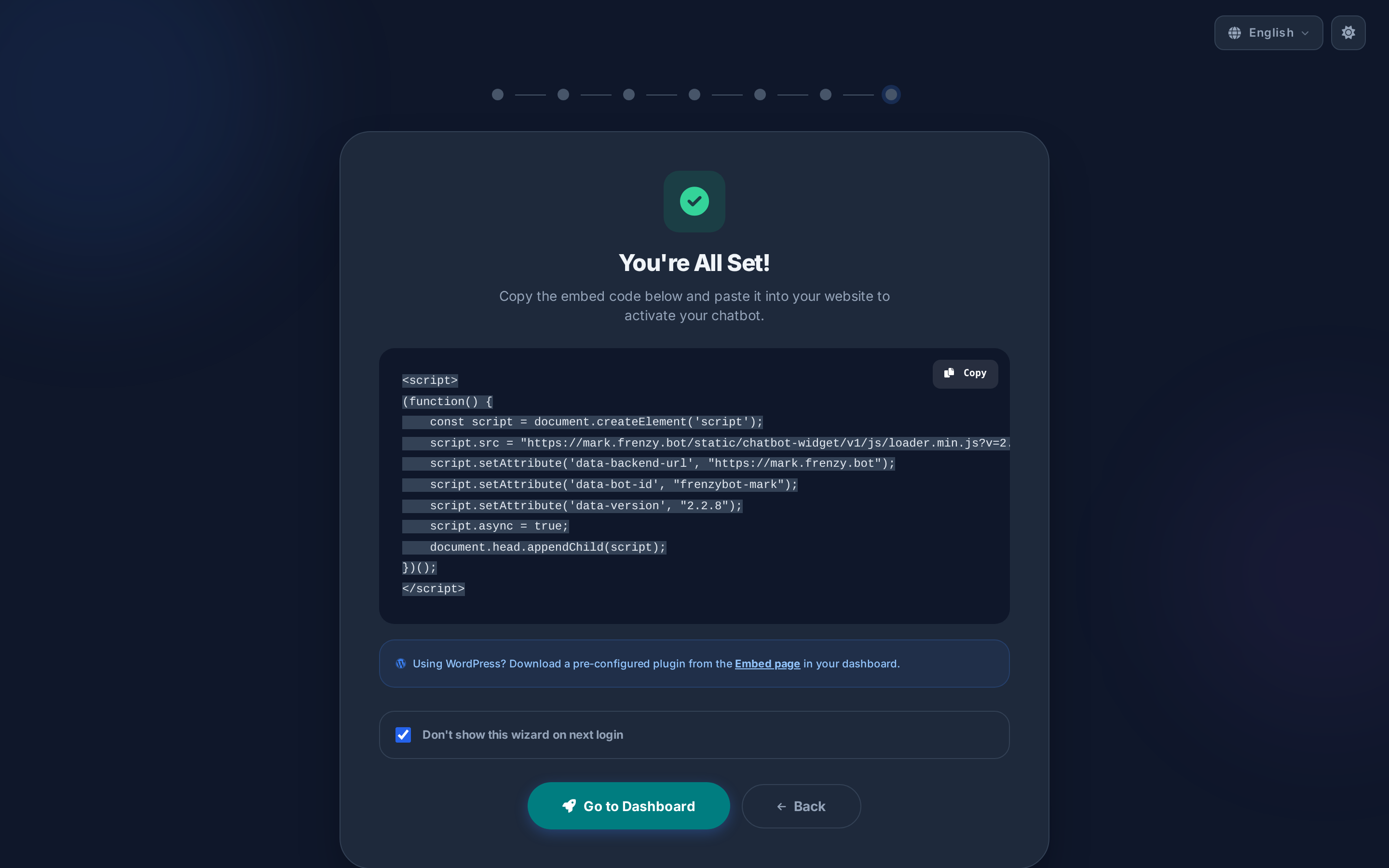
Embed Code:
<script
  src="https://yourdomain.com:8321/chatbot-widget/v1/js/loader.js"
  data-bot-id="your-bot-id"
  data-bot-name="Your Bot Name"
  data-theme-color="#3b82f6"
  data-backend-url="https://yourdomain.com:8321"
  async>
</script>
Features:
- Copy to Clipboard: One-click code copying
- Test Page: Link to test your widget
- Don't Show Again: Skip wizard on future logins
- Go to Dashboard: Access full settings
Next Steps:
- Copy the embed code
- Paste it into your website's HTML (before
</body>) - Test the widget on your site
- Explore advanced settings in the dashboard
Wizard Navigation
Progress Indicator
- 7 dots representing each step
- Current step highlighted in blue
- Completed steps shown in green
- Clickable to jump between steps (if unlocked)
Navigation Buttons
- Back: Return to previous step
- Next/Skip: Continue or skip optional steps
- Save: Store current settings
- Cancel: Exit to dashboard
Auto-Save
- Settings are saved automatically as you progress
- Can exit and resume later
- Step completion status persists
- No data loss on browser refresh
Keyboard Shortcuts
| Shortcut | Action |
|---|---|
Tab |
Navigate between form fields |
Enter |
Submit forms or continue |
Escape |
Close modals/dropdowns |
Ctrl/Cmd + Enter |
Save and continue |
Browser Compatibility
The Setup Wizard supports all modern browsers: - Chrome 90+ (recommended) - Firefox 88+ - Safari 14+ - **Edge 90+
Mobile Responsiveness
The wizard is fully responsive: - Desktop: Full-width layout with side-by-side elements - Tablet: Adaptive layouts for 768-1024px screens - Mobile: Stacked layout with optimized touch targets - Large screens: Enhanced UI for 1600px+ displays
Troubleshooting
Common Issues
Wizard won't load - Check browser console for errors - Verify server is running on port 8321 - Clear browser cache and cookies - Check internet connection
API key not saving
- Verify key format (starts with sk-or-v1-)
- Check OpenRouter account status
- Ensure no extra spaces in the key
- Try manual entry if OAuth fails
Files not uploading - Check file size (max 50MB) - Verify supported format - Ensure stable internet connection - Try one file at a time
Channels not connecting - Verify API tokens and credentials - Check platform-specific requirements - Ensure proper permissions - Review error messages for details
Getting Help
- In- wizard tooltips: Hover over info icons
- Dashboard help: Access help center from dashboard
- Documentation: Visit docs.frenzy.bot
- Support: Contact support through dashboard
Best Practices
Before Starting
- Have your OpenRouter account ready
- Prepare key documents (PDF, DOCX)
- Know your website URLs
- Decide on bot name and branding
During Setup
- Work through steps sequentially
- Save frequently (automatic, but verify)
- Test connections as you go
- Don't worry about perfection - can edit later
After Completion
- Test the widget thoroughly
- Monitor initial conversations
- Refine knowledge base based on queries
- Explore advanced dashboard features
Advanced Features
Multi-Language Support
The wizard supports 10 languages: - English (en) - Spanish (es) - French (fr) - German (de) - Italian (it) - Portuguese (pt) - Dutch (nl) - Hebrew (he) - Arabic (ar) - Russian (ru)
Language selection persists across sessions and applies to the entire interface.
Theme System
- Light theme: Clean, bright interface
- Dark theme: Easy on the eyes for low-light environments
- System preference: Automatically detects OS preference
- Persistent: Remembers your choice
Progress Persistence
- Wizard progress is saved to your account
- Can exit and resume at any time
- Step completion status tracked
- Settings preserved across sessions
Security Considerations
API Keys
- All API keys are encrypted in storage
- OAuth tokens are securely managed
- No keys are exposed in client-side code
- Keys can be revoked from provider dashboards
File Uploads
- Files are scanned during processing
- Temporary storage with automatic cleanup
- Size limits prevent abuse
- Supported formats only (no executables)
Data Privacy
- No data shared with third parties
- Knowledge base remains private
- Optional analytics can be disabled
- GDPR compliant data handling
Related Documentation
- Quick Start Guide - Alternative setup method
- Knowledge Base - Deep dive into content management
- Widget Configuration - Advanced widget settings
- Channel Setup - Detailed channel guides
- Troubleshooting - Common issues and solutions
Summary
The Setup Wizard provides a streamlined, user-friendly path to deploying your AI chatbot. With its intuitive interface, comprehensive features, and flexible options, you can have a fully functional chatbot running on your website in minutes.
Remember: The wizard is just the beginning. The full dashboard offers powerful features for analytics, automation, and advanced customization that you can explore at your own pace.
Ready to start? Access the Setup Wizard or log in to begin your journey!