Accessing the Dashboard
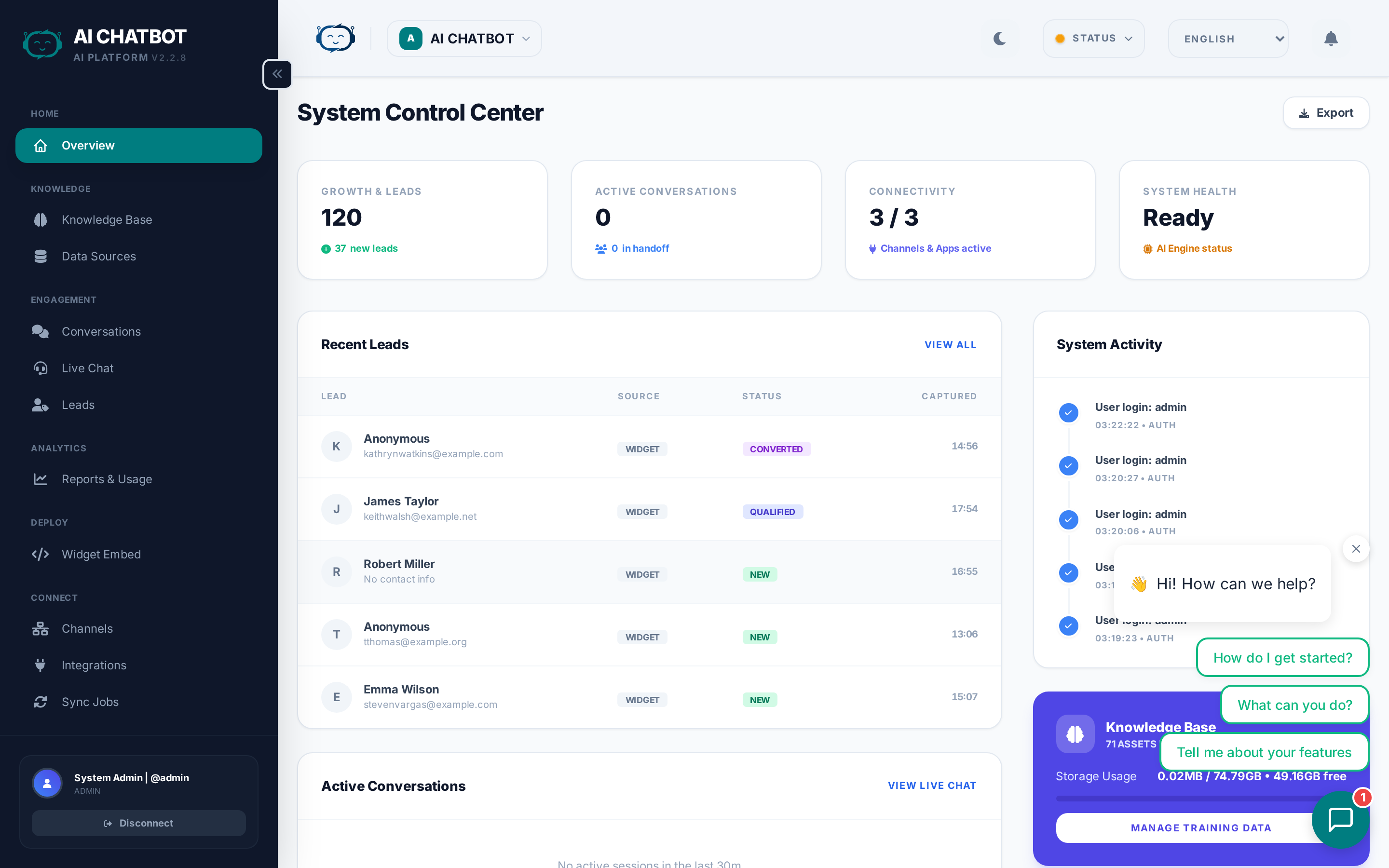
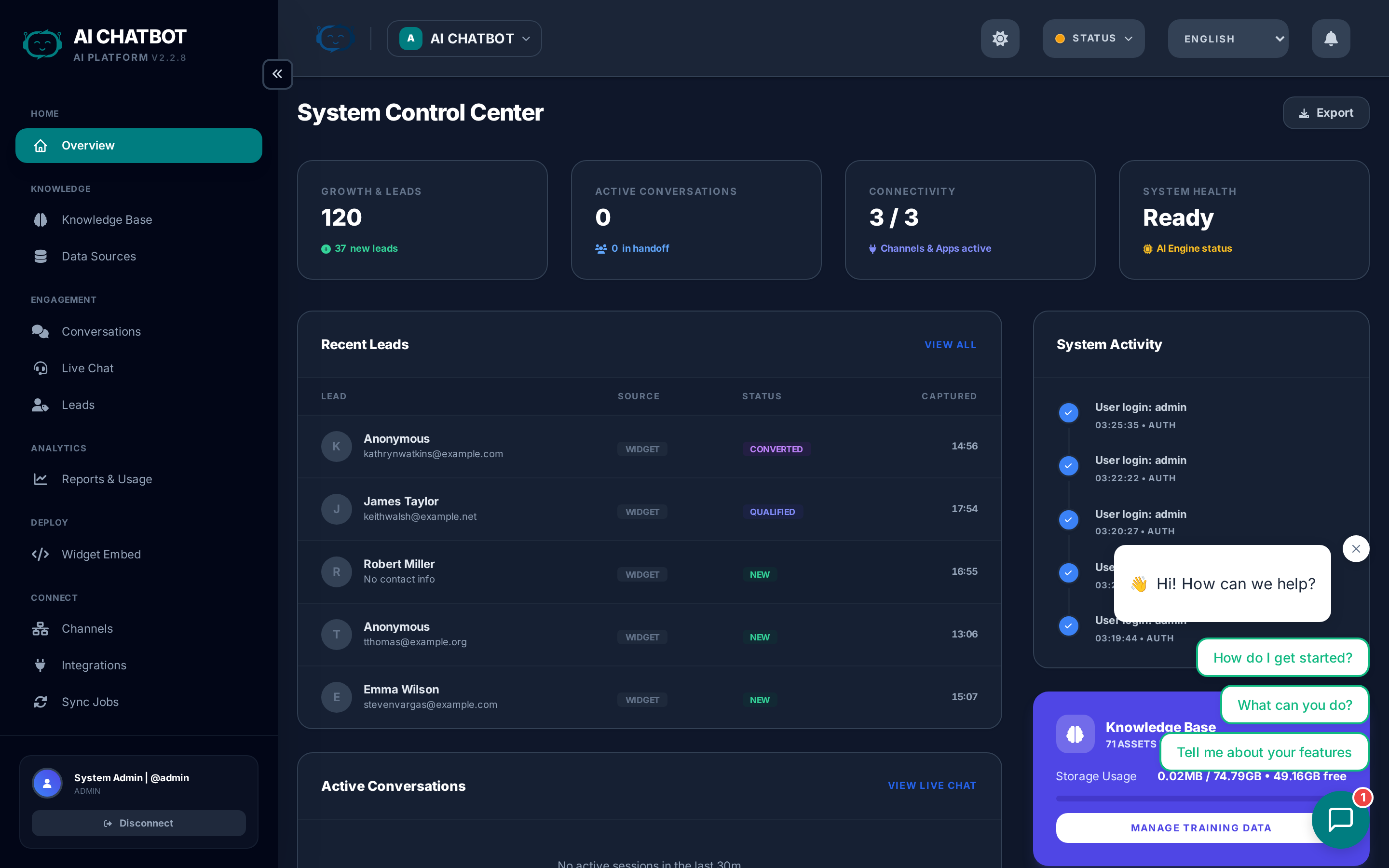
The dashboard is the control center for your AI assistant. This page explains how login works, what to expect on first access, how session security is managed, and what each area of the dashboard does.
Login URL
Navigate to your dashboard at:
- Managed Cloud:
https://user.frenzy.bot/dashboard/ - Private Server:
https://your-custom-domain.com/dashboard/
If you are hosting on your own infrastructure without a domain, use http://<server-ip>:8321/dashboard/.
If you have a custom domain configured, use that instead (e.g., https://bot.yourcompany.com/dashboard/).
First login
When your FRENZY.BOT instance is set up, the first admin account is created automatically.
- No manual user creation needed — just log in with the credentials provided by your account manager.
- After first login, you can change your password in Settings → System.
- You can create additional users in Users & Permissions.
Session length
Session duration controls how long you stay logged in before being asked to re-authenticate.
Configure it in Settings → System → Max Session Length.
| Setting | Best for |
|---|---|
| Short sessions (1-4 hours) | High-security environments, shared computers |
| Long sessions (1 week+) | Admin teams who work in the dashboard daily |
| Maximum (1 month) | Convenience-first setups with trusted access |
Security recommendation
For production environments with multiple team members, keep sessions under 24 hours and use RBAC to limit what each role can access.
Dashboard navigation
After logging in, the sidebar gives you access to every area of FRENZY.BOT:
| Section | What it does | Learn more |
|---|---|---|
| Overview | System health, key metrics, knowledge base summary | Overview |
| Knowledge Base | Upload files, add URLs, create FAQs | Knowledge Base |
| Conversations | Chat history, session transcripts, quality review | Conversations |
| Live Chat | Human handoff requests and agent workspace | Live Chat |
| Leads | Captured contacts, pipeline management, export | Leads |
| Analytics | Usage reports, funnel metrics, performance data | Analytics |
| Channels | WhatsApp, Telegram, Discord, Instagram, etc. | Channels |
| Integrations | CRM, email, webhook, Google Sheets connectors | Integrations |
| Sync Jobs | Background task status for indexing operations | Sync Jobs |
| Settings | AI engine, branding, widget, lead form, system | Settings |
| Users | Team management and user accounts | Users |
| Roles & Access | RBAC permissions matrix | RBAC |
| Modules | Optional capabilities and add-ons | Modules |
| Activity Logs | Audit trail of all system changes | Logs |
| Embed | Widget embed code generator | Embed |
Sidebar visibility
The sidebar only shows modules your role has permission to access. If you don't see a section, ask your admin to check your role in Roles & Access.
Workspace switcher
If your installation has multiple bots, the workspace dropdown in the top-right header lets you switch between them. All dashboard data (knowledge base, conversations, leads, analytics) is scoped to the currently selected bot.
Troubleshooting login issues
Can't reach the dashboard:
- Check that you're using the correct URL (with
https://and the right domain or IP). - If using a custom domain, wait a few minutes for DNS propagation.
- Contact your account manager if the dashboard is unreachable.
Login credentials don't work:
- Verify the credentials provided by your account manager.
- If you've forgotten your password, ask an admin to reset it in Users.
Session expires too quickly:
- Increase the session length in Settings → System → Max Session Length.