Live Chat (Handoff)
Path: /dashboard/handoff · Permission: Handoff module
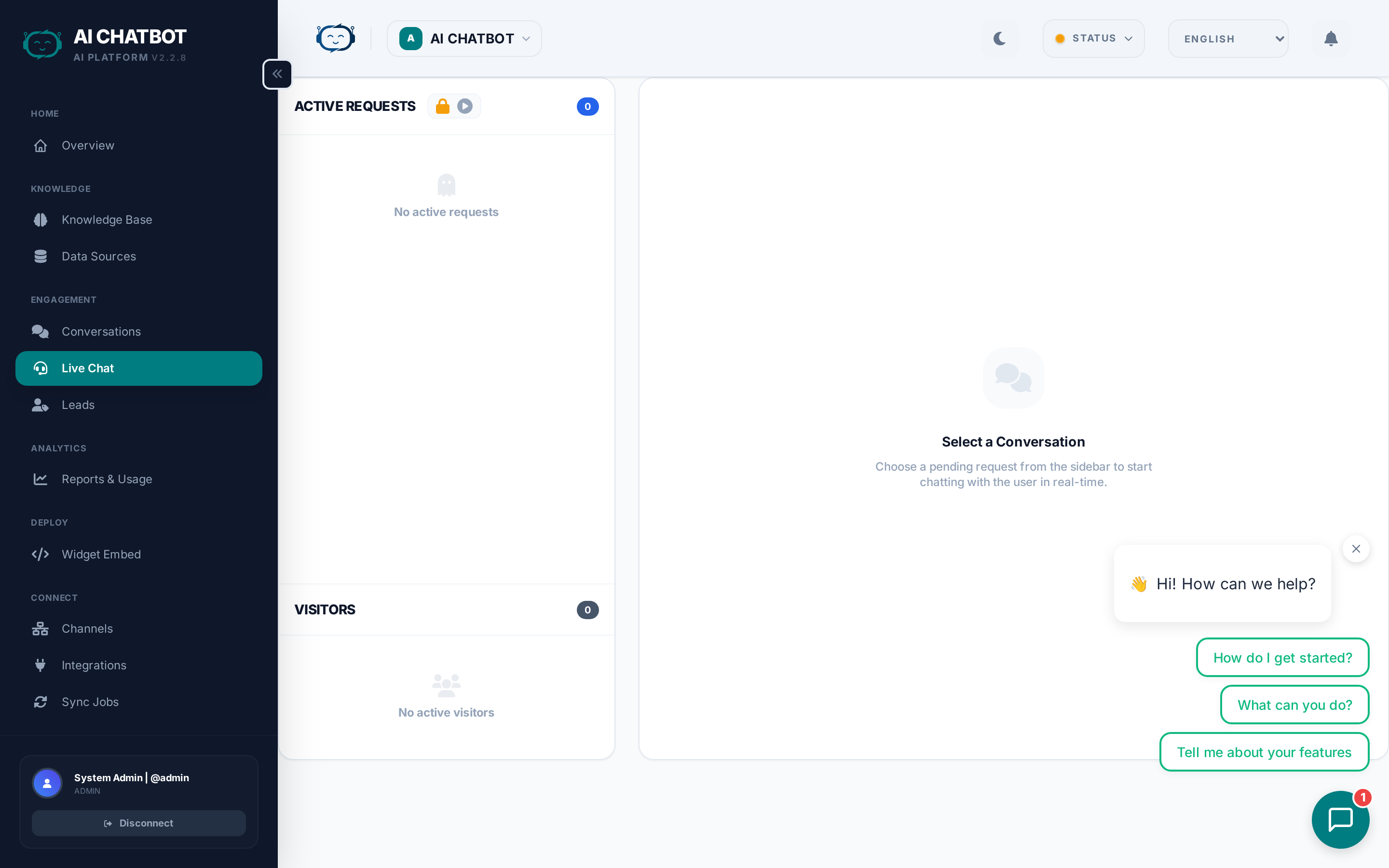
Live Chat lets a human agent take over a conversation when the AI isn't enough. This is essential for high-value leads, complex support requests, or sensitive conversations that require a personal touch.
When to use handoff
- The user explicitly requests a human — "I want to talk to a person."
- The AI can't confidently answer — Complex or ambiguous questions outside the knowledge base.
- High-value lead — You want to close a deal personally.
- Sensitive topic — Legal, medical, or financial questions that need human judgment.
How handoff works
Trigger conditions
Handoff can be triggered in two ways:
- User-initiated — The user types a phrase that matches handoff keywords (e.g., "talk to a human", "speak to an agent").
- AI-initiated — The bot detects low confidence or recognizes a topic that should be escalated.
Configure trigger rules in Settings → Human Handoff.
The handoff flow
User asks for help → Bot offers handoff → User accepts
    ↓
Request appears in Live Chat dashboard (Pending)
    ↓
Agent joins the conversation (Active)
    ↓
Agent and user chat in real-time
    ↓
Agent resolves the conversation (Resolved)
    ↓
AI takes over for future questions
Setting up handoff
- Go to Settings → Human Handoff.
- Enable the handoff module.
- Configure trigger keywords or conditions.
- Set up notifications so agents are alerted when a request comes in.
- Confirm that agents have the Handoff module enabled in their role permissions.
Request states
| State | What it means |
|---|---|
| Pending | A user is waiting for a human agent. No one has joined yet. |
| Active | An agent has joined and is chatting with the user. |
| Resolved | The agent has closed the conversation. The AI resumes for future questions. |
SLA fallback
If no agent is available within the configured time window, the system can automatically fall back to a lead capture form — so the user can leave their contact details for follow-up rather than waiting indefinitely.
Agent workspace
When an agent opens a handoff request, they see:
- Full conversation history — Everything the user and AI discussed before handoff.
- User context — IP, channel source, session duration.
- Real-time messaging — Type and send replies with typing indicators.
- Markdown support — Format responses with bold, links, and lists.
Agent actions
- Join — Accept the handoff request and start chatting.
- Reject — Decline the request (it returns to the pending queue for another agent).
- Resolve — Close the conversation. The AI takes over for any future messages in that session.
Cross-channel handoff
Handoff works across all connected channels:
- Website widget — Agent replies appear in the chat widget in real-time.
- WhatsApp, Telegram, Discord, etc. — Agent replies are routed back through the same channel.
The user experience is seamless — they don't need to switch platforms.
Notification bridge
Handoff requests trigger notifications through your existing integrations:
- Email — Receive an alert when a user requests a human.
- Webhook — Send handoff events to your internal tools or ticketing system.
- Slack / Discord — Get notified in your team's communication channels.
FAQ
Q: I don't see Live Chat in the sidebar.
- The handoff module may be disabled. Enable it in Modules or Settings → Human Handoff. Also check that your role has permission for this module.
Q: Users are not getting handoff prompts.
- Verify handoff trigger keywords are configured in Settings → Human Handoff. Check that the module is enabled.
Q: What happens if no agent is available?
- If SLA fallback is configured, the user is offered a lead form to leave their contact details. Otherwise, the user sees a message that no agents are currently available.
Q: Can multiple agents handle handoff requests?
- Yes. Any user with the Handoff module permission can see and join pending requests. The first agent to join takes ownership.
Q: Does the AI stop responding during handoff?
- Yes. Once an agent joins, the AI pauses for that session. After the agent resolves the conversation, the AI resumes for any new messages.