Lead Management
Path: /dashboard/leads · Permission: Leads module
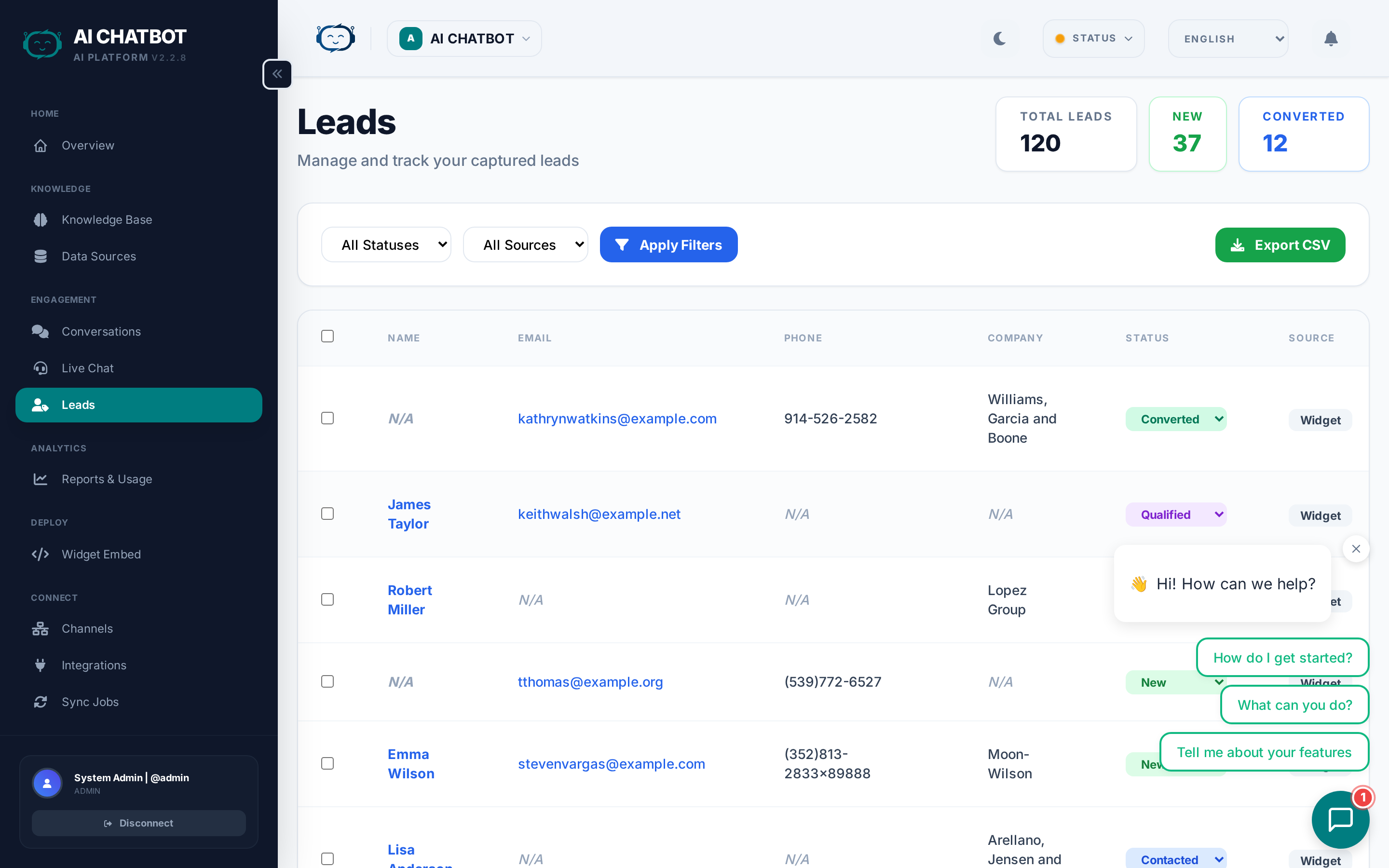
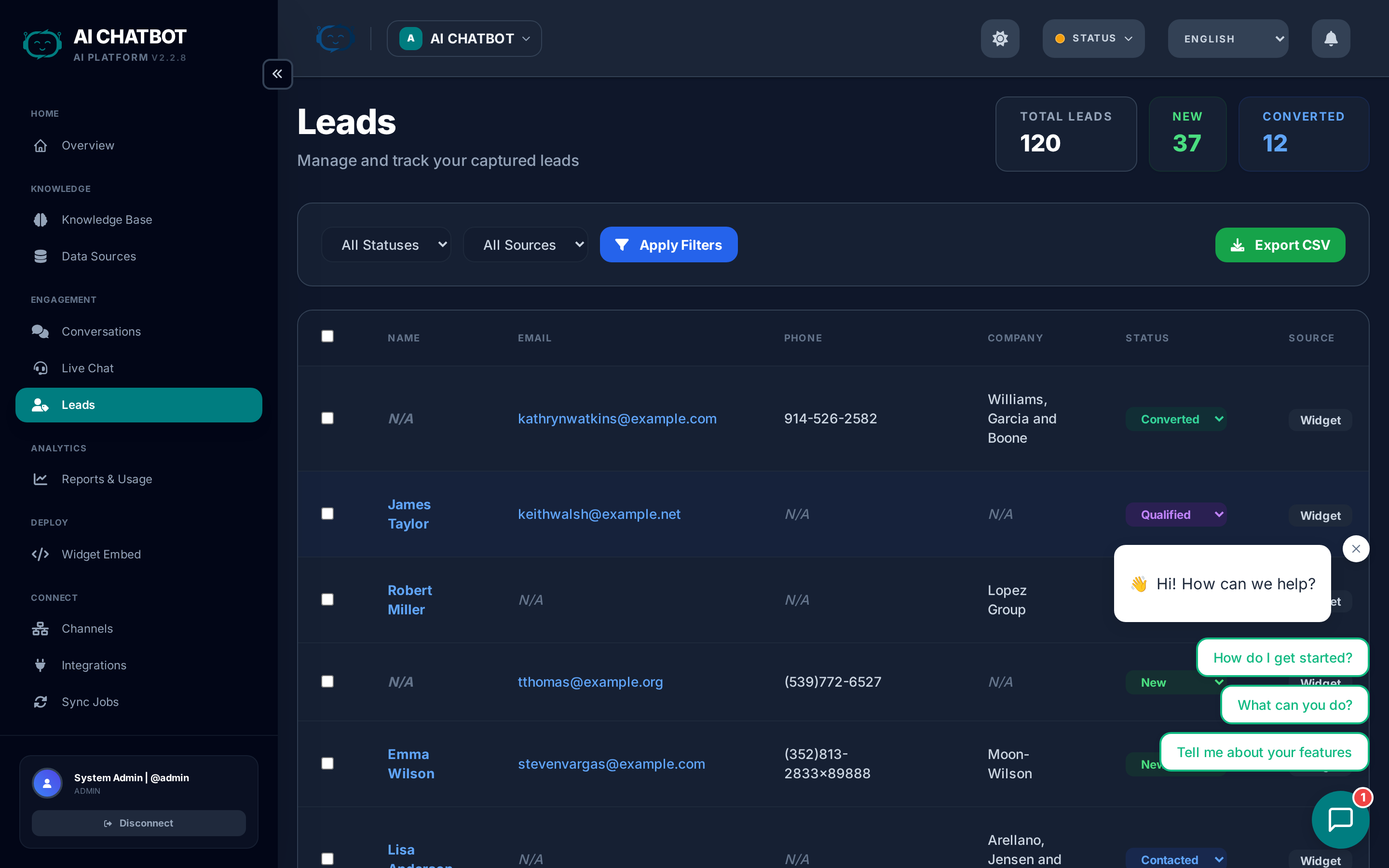
Lead Management is your pipeline view for every contact captured by the bot. Every lead includes conversation context, contact details, and source information so your team can follow up quickly and intelligently.
What this page answers
- Who engaged with the bot and left their details?
- What stage is each lead in?
- Which channels or pages generate the best leads?
- How do I route leads to my CRM automatically?
Lead counters
The top of the page shows real-time pipeline metrics:
| Counter | What it tracks |
|---|---|
| Total Leads | All leads collected to date for the current bot |
| New | Recently captured, not yet reviewed |
| Contacted | Outreach has been sent |
| Qualified | Confirmed as a good fit |
| Converted | Successful outcomes |
Lead records
Each lead record includes:
- Contact info — Name, email, phone number
- Business context — Company name and website
- Source — Which channel captured the lead (Widget, WhatsApp, Telegram, API, etc.)
- Status — Current pipeline stage
- Timestamp — When the lead was captured
- Custom fields — Budget, timeline, industry, or any other fields you've configured
Lead detail view
Open any lead to see the full picture:
- AI-generated conversation summary — A concise recap of what the user discussed with the bot.
- Full conversation transcript — Link to the complete chat history.
- Custom fields — Any additional data collected through the lead form.
- Geo metadata — Location and timezone information for follow-up scheduling.
- Status history — When the lead moved through each pipeline stage.
How leads are captured
Leads are created when a user submits the in-chat lead form. The form can be triggered by:
- Intent detection — The bot recognizes the user wants to be contacted.
- Explicit request — The user asks to leave their details.
- Configuration rules — Lead form appears after a set number of messages or specific conditions.
Configuring the lead form
Go to Settings → Lead Form to control which fields are collected:
| Field | Default | Notes |
|---|---|---|
| Name | Enabled | Full name |
| Enabled | Primary contact method | |
| Phone | Optional | Toggle on/off |
| Company | Optional | Business context |
| Custom fields | Optional | Dropdowns, checkboxes, text fields |
Keep forms short
The fewer fields you require, the higher your completion rate. Start with just Name + Email, then add fields based on what your sales team actually needs.
Lead pipeline workflow
The recommended workflow for managing leads:
| Stage | Action | Who |
|---|---|---|
| New | Review contact details, read conversation summary | Sales / Support |
| Contacted | Send initial outreach (email, call, message) | Sales |
| Qualified | Confirm the lead is a good fit for your product/service | Sales |
| Converted | Deal closed, customer acquired | Sales |
| Lost | Not moving forward — record the reason for future analysis | Sales |
Update lead status directly in the dashboard. Status changes are logged in the activity trail.
Integrations & export
Automatic routing
Connect your tools in Integrations so leads arrive automatically:
- Email — Instant notifications with lead details and conversation summary.
- Google Sheets — Each lead appended as a new row for lightweight CRM.
- Webhook — JSON payload sent to your custom endpoint or CRM API.
- MailChimp — Add contacts to your email marketing audience.
Manual export
For offline review or bulk import into external systems:
- Export to CSV — Download lead data for Salesforce, HubSpot, Excel, or any CRM that accepts CSV imports.
FAQ
Q: Why is a lead missing an email or phone?
- The user chose not to fill in that field, or the field is not enabled. Check Settings → Lead Form to ensure required fields are toggled on.
Q: Why are leads not showing up in my CRM?
- Confirm the integration is enabled, tested successfully, and toggled to Active in Integrations.
Q: Can I capture leads from WhatsApp or Telegram?
- Yes. The lead form works across all channels. Leads from messaging channels include the source channel in the record.
Q: How do I delete a lead?
- Open the lead detail view and click Delete. This action is permanent. For compliance scenarios, export the data first.
Q: Are leads scoped to individual bots?
- Yes. Each bot has its own lead pipeline. Switch bots using the workspace dropdown to see leads for a different bot.