WooCommerce REST API Setup
Learn how to generate API keys in WooCommerce to connect your FRENZY.BOT to your WooCommerce store.
Overview
The WooCommerce REST API is a powerful tool for connecting your WooCommerce shop to FRENZY.BOT. This integration allows your AI assistant to access product information, order details, and customer data to provide intelligent support to your customers.
What You'll Need
- A WordPress site with WooCommerce installed and activated
- Administrator access to your WordPress dashboard
- Pretty permalinks enabled (required for the REST API to work)
Prerequisites
Enable WordPress Permalinks
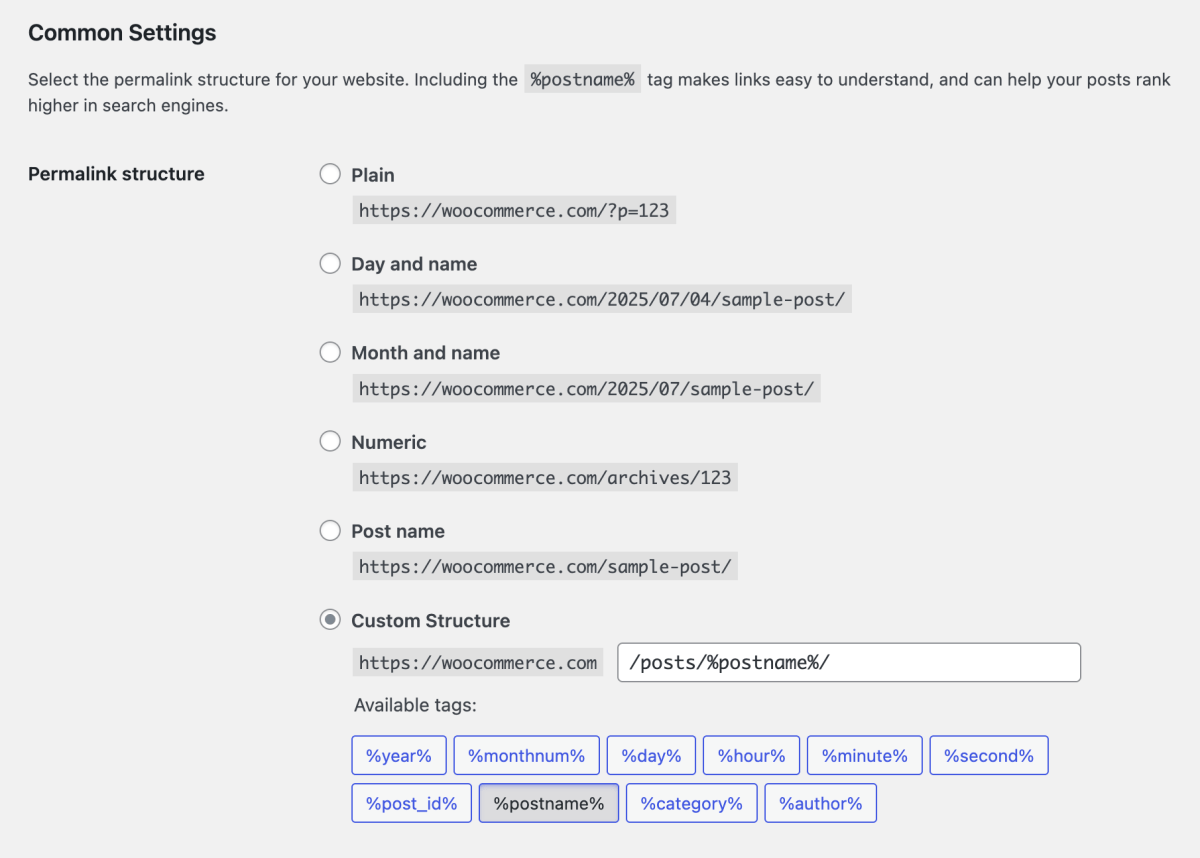
Before you can use the WooCommerce REST API, you must enable permalinks in WordPress:
- Log in to your WordPress admin dashboard
- Navigate to Settings → Permalinks
- Select any option except "Plain"
- We recommend "Day and name" or "Post name" for best results
- Click Save Changes
Important
The WooCommerce REST API will not work if permalinks are set to "Plain". Make sure to select a human-readable permalink structure.
Generating API Keys
Follow these steps to create API keys for FRENZY.BOT:
Step 1: Access REST API Settings
- Log in to your WordPress admin dashboard
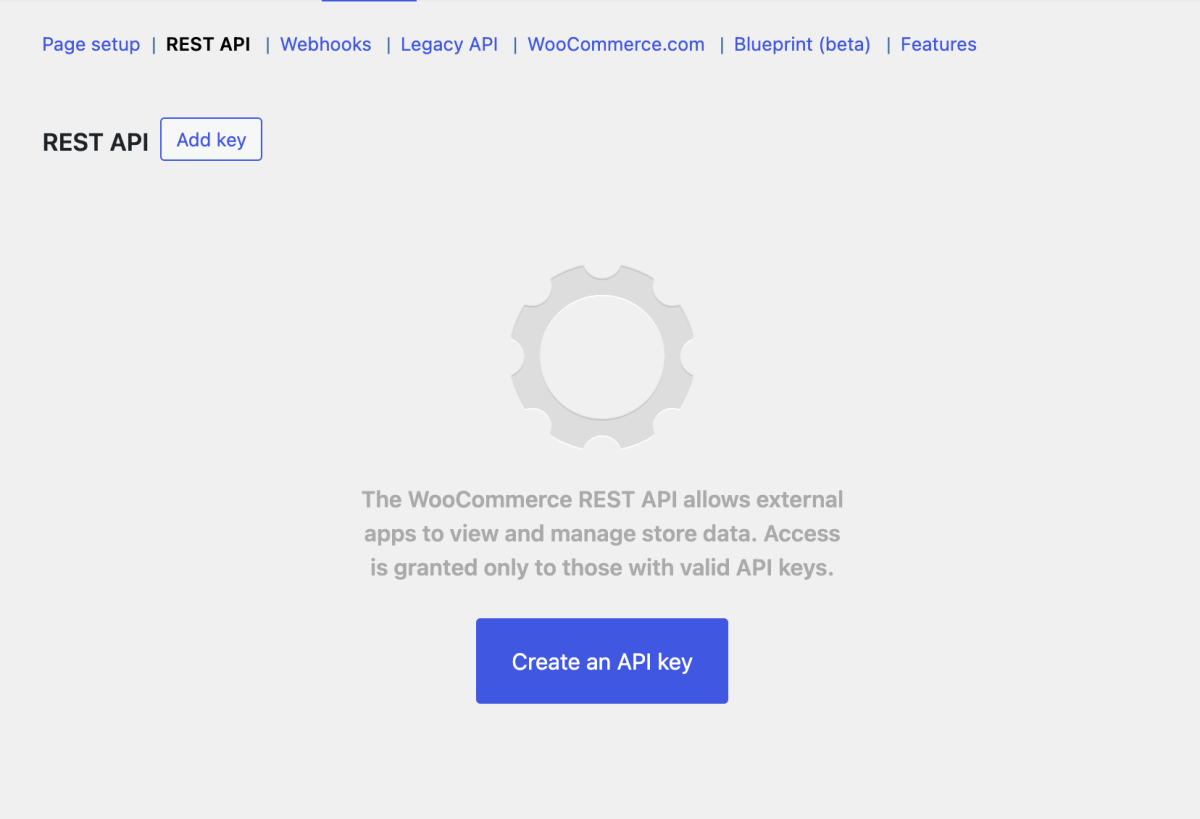
- Navigate to WooCommerce → Settings
- Click on the Advanced tab
- Select the REST API sub-tab
Step 2: Create a New API Key
- Click the Add key or Create an API key button
- You'll be taken to the Key Details screen
Step 3: Configure Key Details
Fill in the following information:
- Description: Enter a descriptive name (e.g., "FRENZY.BOT Integration")
- User: Select the WordPress user account to associate with this key
- This user's permissions will determine what the API can access
- We recommend creating a dedicated user for API access
- Permissions: Select the appropriate access level:
- Read - View products, orders, and customer data (recommended for FRENZY.BOT)
- Write - Create and update data
- Read/Write - Full access to view and modify data
Security Best Practice
For FRENZY.BOT, Read permission is typically sufficient. Only grant Write or Read/Write access if you need the bot to create or modify orders, products, or customer data.
Step 4: Generate and Save Keys
- Click Generate API Key
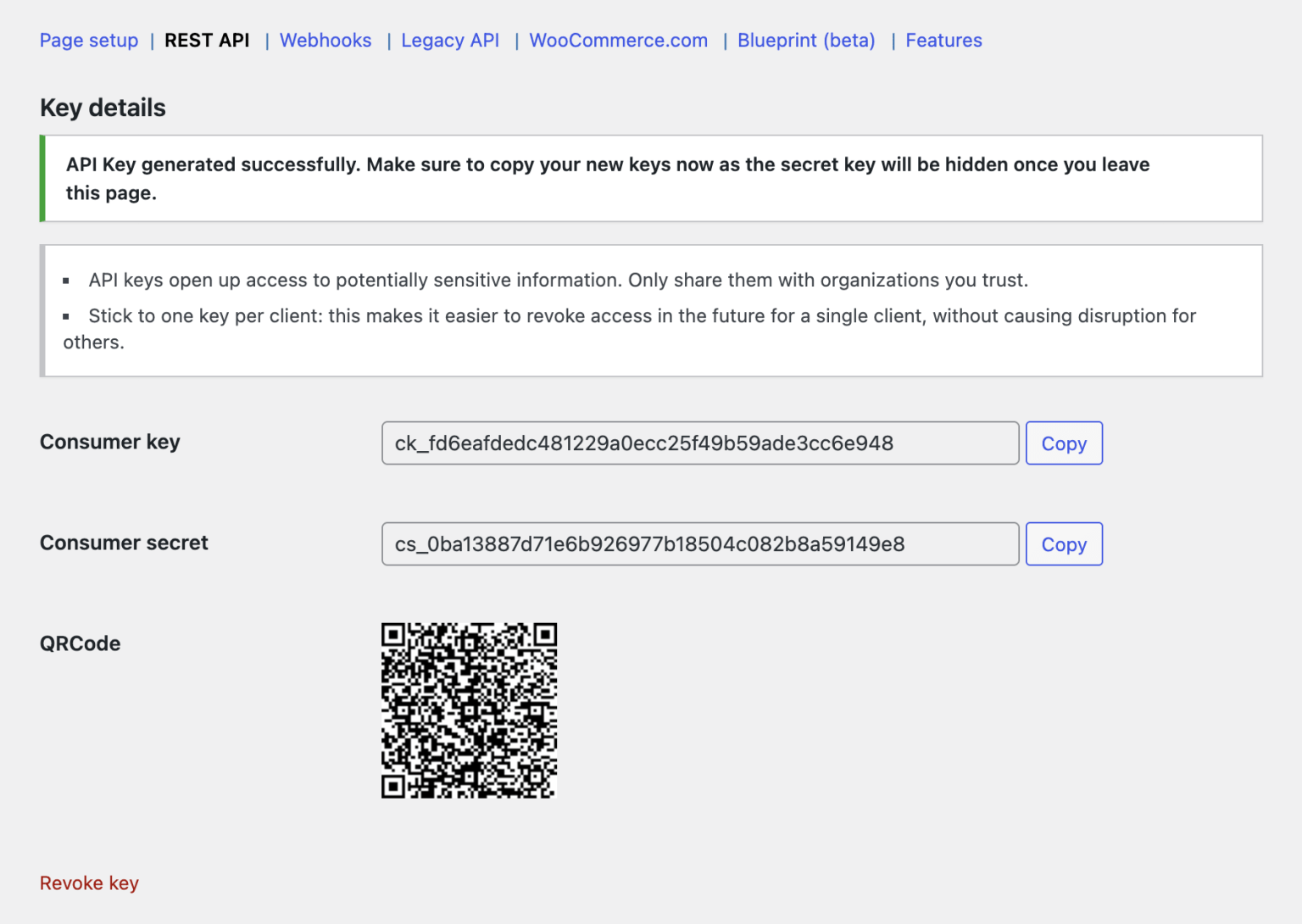
- WooCommerce will display your new API credentials:
- Consumer Key - Your API username
- Consumer Secret - Your API password
- QR Code - For easy mobile scanning
Important - Save Your Keys Now
The Consumer Secret is only shown once. Make sure to copy both keys immediately and store them securely. If you lose the Consumer Secret, you'll need to revoke this key and create a new one.
Step 5: Copy Your Keys
- Click the Copy button next to the Consumer Key and paste it somewhere safe
- Click the Copy button next to the Consumer Secret and paste it somewhere safe
- You'll need both of these keys to configure FRENZY.BOT
Connecting to FRENZY.BOT
Once you have your API keys:
- Log in to your FRENZY.BOT dashboard
- Navigate to Modules in the sidebar
- Find the WooCommerce module and click Configure
- Enter your WooCommerce store details:
- Store URL: Your WooCommerce site URL (e.g.,
https://yourstore.com) - Consumer Key: Paste the Consumer Key you generated
- Consumer Secret: Paste the Consumer Secret you generated
- Click Save to connect
Module Configuration
The WooCommerce module will be available in your FRENZY.BOT dashboard under Modules. Look for the WooCommerce card and click Configure to enter your API credentials.
Testing Your Connection
After configuring the module in FRENZY.BOT:
- The system will automatically test the connection
- You should see a success message if everything is configured correctly
- Your bot will now have access to your WooCommerce data
Connection Successful
Once connected, your FRENZY.BOT can answer questions about products, check order status, and provide customer support using your WooCommerce data.
Managing API Keys
Viewing Existing Keys
To view your existing API keys:
- Go to WooCommerce → Settings → Advanced → REST API
- You'll see a list of all API keys with:
- Description
- Permissions
- Last access date
Revoking a Key
If you need to revoke access:
- Find the key in the REST API list
- Click the Revoke link (in red text)
- Confirm the revocation
Revoke Compromised Keys Immediately
If you suspect your API keys have been compromised, revoke them immediately and generate new ones.
Regenerating Keys
If you lose your Consumer Secret:
- Revoke the old key
- Create a new API key following the steps above
- Update the credentials in FRENZY.BOT
Legacy REST API
WooCommerce 8.0+
As of WooCommerce 8.0, the legacy REST API has been removed. If you're using an older integration that requires the legacy API, you'll need to install the WooCommerce Legacy REST API plugin.
FRENZY.BOT uses the modern WordPress REST API integration and does not require the legacy plugin.
Troubleshooting
API Not Working
If the API connection fails:
- Check Permalinks: Ensure permalinks are not set to "Plain"
- Verify Keys: Make sure you copied the Consumer Key and Consumer Secret correctly
- Check User Permissions: Ensure the WordPress user associated with the API key has appropriate permissions
- SSL Certificate: Some servers require HTTPS for API access
- Firewall/Security Plugins: Check if security plugins are blocking API requests
Permission Errors
If you see permission errors:
- Verify the API key has the correct permission level (Read, Write, or Read/Write)
- Check that the associated WordPress user has WooCommerce capabilities
- Ensure the user account is active and not suspended
Connection Timeout
If the connection times out:
- Check your server's PHP execution time limits
- Verify your WooCommerce store is accessible from the internet
- Check for server firewall rules blocking API requests
Security Best Practices
- Use Read-Only Access: Only grant Read permission unless write access is absolutely necessary
- Dedicated User: Create a dedicated WordPress user specifically for API access
- Regular Audits: Periodically review and revoke unused API keys
- Secure Storage: Never commit API keys to version control or share them publicly
- HTTPS Only: Always use HTTPS for your WooCommerce store
- Monitor Access: Check the "Last access" date regularly to detect unusual activity
What Data Can FRENZY.BOT Access?
With Read permission, FRENZY.BOT can access:
- Products: Names, descriptions, prices, SKUs, stock status, categories
- Orders: Order details, status, customer information, line items
- Customers: Customer profiles, order history, contact information
- Coupons: Discount codes and their details
- Categories & Tags: Product organization data
This allows your AI assistant to:
- Answer product questions
- Check order status
- Provide shipping information
- Recommend products
- Help with returns and refunds
- Check stock availability
Need Help?
If you encounter issues setting up the WooCommerce integration:
- Check our Troubleshooting Guide
- Review the WooCommerce REST API Documentation
- Contact FRENZY.BOT Support